

Elasticsearch custom script formats
Hackolade Studio generates the mappings scripts that create each Elasticsearch index in two standard formats: a Kibana request, to paste in the Dev Tools console of Kibana, and a curl command for the server set in your data model. When your team needs another shape, you can write a custom script format once for the target, instead of teams having to edit generated mappings scripts by hand after each artifact generation. Hackolade Studio then lists it in addition to the Kibana and curl formats.
Custom script formats are currently available only for the Elasticsearch v7 and above plugin.
When a custom script format helps
The standard mapping formats, Kibana Script or CURL Script, suit users who create indexes by hand, on a cluster they can reach directly. A custom script format helps when the mappings output goes further than that:
- Your indexes are created by a deployment pipeline. The pipeline runs a mappings script against a development, a test, and a production cluster, so the script must take the server as a parameter instead of the value of the data model.
- Your cluster requires authentication. The mappings script must send a user and password, or an API key, passed to the script as parameters so that no secret is written in the data model properties.
- Some steps depend on the environment. For example, the mappings script creates an alias for the index only when it runs in production, so that applications switch to the new index at the right moment.
- Your team works on Windows. The mappings script must be a PowerShell script rather than a curl command.
- Someone must review the index before it is deployed. The mappings script starts with a readable summary of the index, its shards and its fields with their types, or a custom script format produces a Markdown page that documents the index instead of a mappings script.
The first three needs are combined in the complete example of a bash script with parameters and a conditional alias, and the summary of the fields in Reuse the standard formats in your custom script format.
How a custom script format works
Your data model already defines what an Elasticsearch mappings script needs: the name of each index, its settings, its fields and their types. A custom script format is one or more statements, possibly with variables to handle multiple possible values. Each time you forward-engineer, Hackolade Studio replaces the variables with the corresponding value in the model property, while leaving the rest of your text unchanged.
For example, this line of a custom script format:
curl -X PUT "localhost:9200/{{ indexName }}"
becomes, for the orders index:
curl -X PUT "localhost:9200/orders"
You custom script format may contain: comments, commands, parameters, etc. Hackolade Studio does not need to understand it, and does not check it. A custom script format can therefore produce a bash or PowerShell script, a Kibana request, or even a Markdown page that documents the index.
A custom script format uses two kinds of markers:
{{ ... }}writes a value from data model properties, such as{{ indexName }}. A filter after a|changes how the value is written:{{ body | json: 4 }}writes the request body as JSON, indented by 4 spaces;{% ... %}adds logic:{% if %}keeps a part of the script only under a condition, and{% for %}repeats a part for each field.
Such markers are generally enough for most custom script formats. The markers follow the Liquid syntax, a common syntax for this kind of text: its documentation lists all the tags and filters if you need more. You can also let an AI assistant write the custom script format from an existing script, as described in Let an AI assistant write the custom script format.
Create a custom script format
Custom script formats are stored with your options, so that you can use them with all your Elasticsearch data models.
-
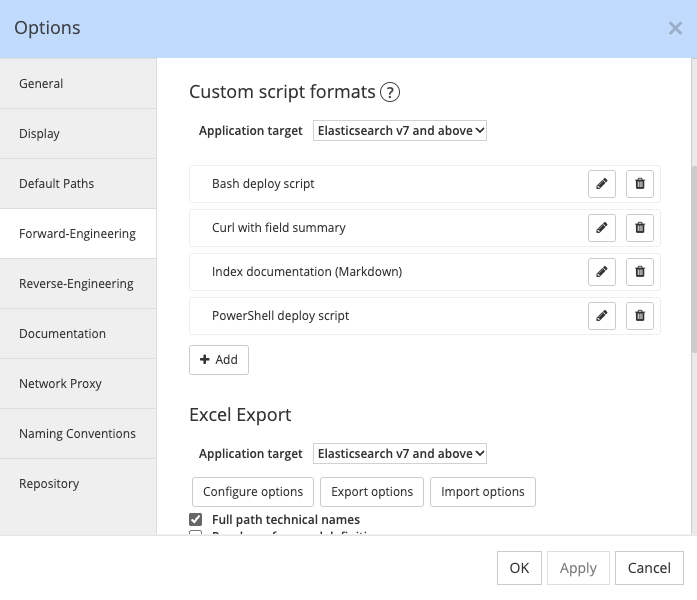
Open Tools > Options > Forward-Engineering.
-
In the Custom script formats section, select Elasticsearch v7 and above in the Application target dropdown. The section lists the custom script formats you have already created for this target:
-
Click Add. The Custom script format editor opens with a starting custom script format, which writes the index name and the request body as a Kibana request.
-
Type a Name for the custom script format. This name appears in the list of script formats. It must be unique, and cannot contain
< > : " / \ | ? *or.., nor be a name reserved by Windows such asconoraux. -
Write the custom script format in the right panel, then click Save.
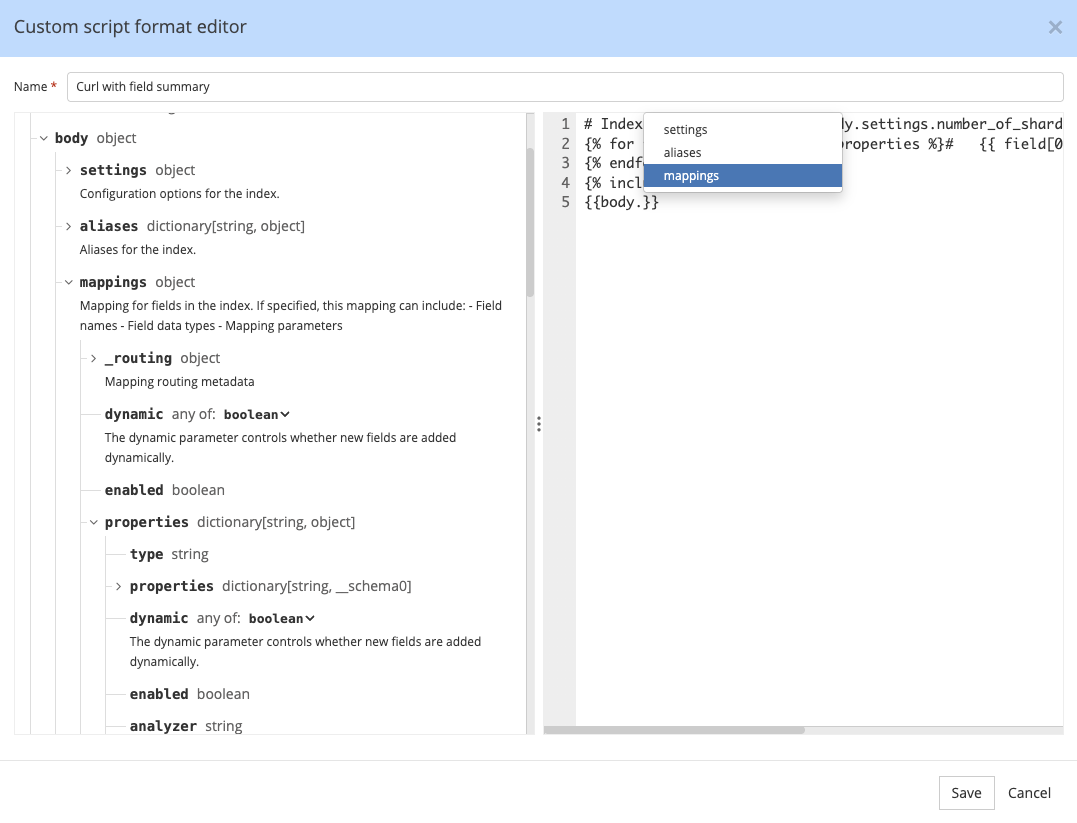
The left panel of the editor shows the data you can use in the custom script format, with a description of most properties. Expand a property to see its children. In the right panel, type {{ or {% to get suggestions: the variables of the data, the filters after a |, and the tags after {%. Inside a {% for %} loop, the suggestions also include the loop variable and forloop.
In this example, typing {{ body. opens the list of the properties of the request body:
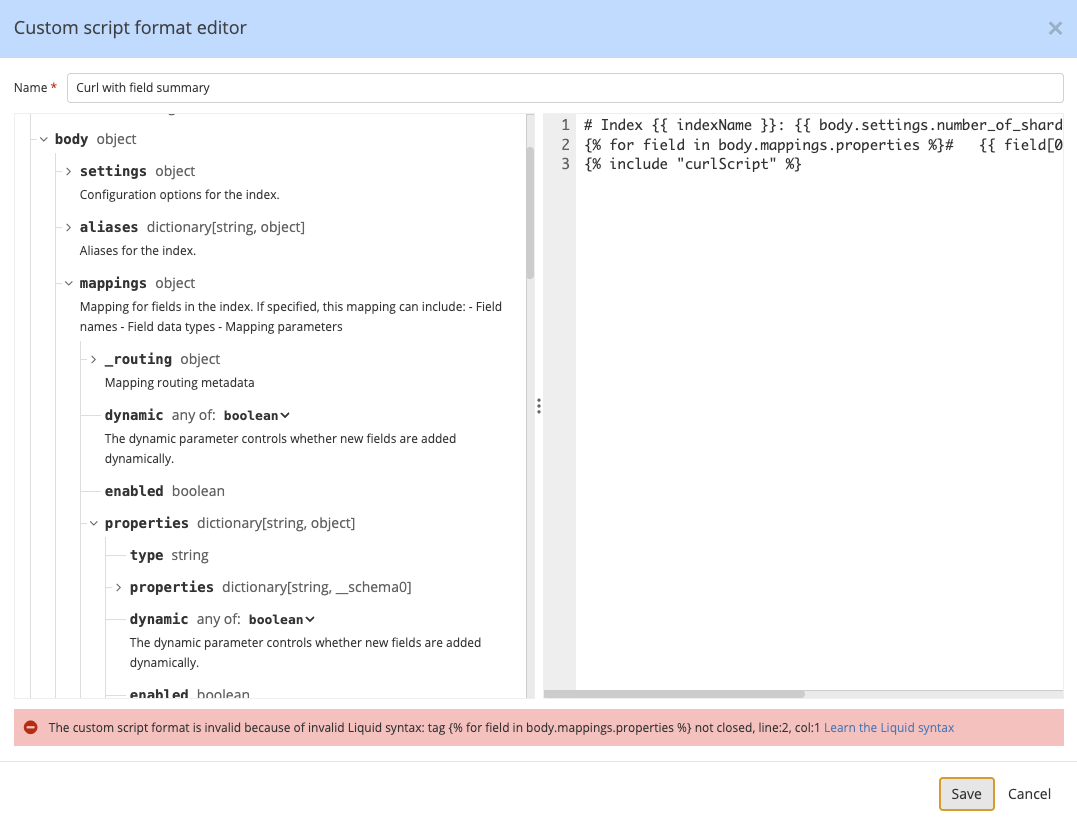
When you click Save, Hackolade Studio checks the name and the custom script format. If the Liquid syntax is invalid, for example a tag that is unknown or not closed, the editor shows the error with its line and column, and does not save the custom script format. The Learn the Liquid syntax link opens the documentation of the Liquid language:
Warning
Hackolade Studio checks the syntax of the custom script format, not the script it produces. You are responsible for the commands, parameters and values you write in a custom script format: a mistake can produce a script that fails, or that changes your cluster in a way you did not expect. Test the generated script before you run it on a production cluster.
To change or remove a custom script format later, use the edit and delete buttons next to its name in the Custom script formats section.
Generate a mappings script with a custom script format
Your custom script formats appear after the Kibana Script and CURL Script formats, in alphabetical order:
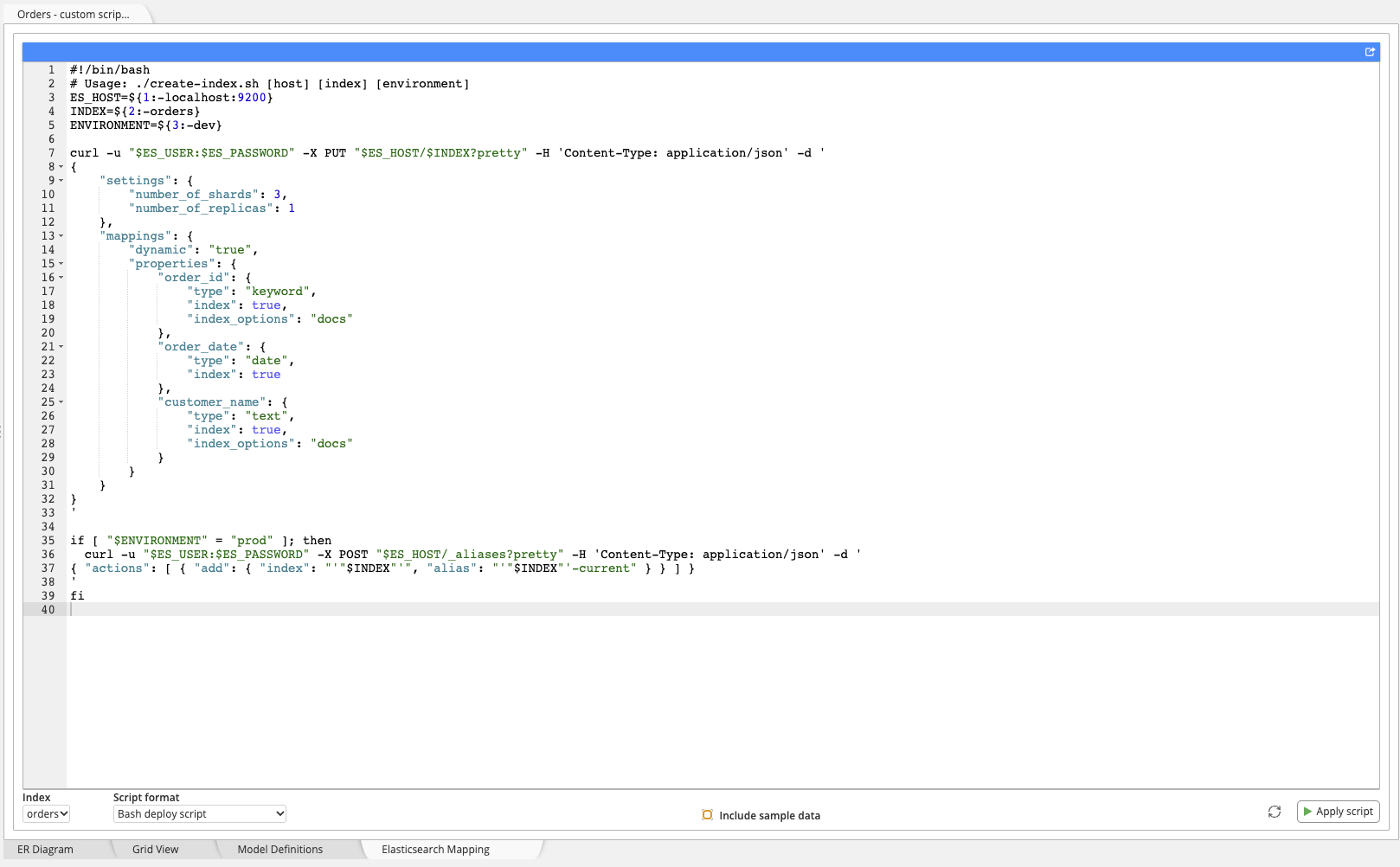
- in the Script format dropdown of the Elasticsearch Mapping tab of the central pane, for an index or for an entity;
- in the Target script format dropdown of the Tools > Forward-Engineering dialog.
Select your custom script format in the Elasticsearch Mapping tab, and Hackolade Studio shows the script it generates:
In the Tools > Forward-Engineering dialog, your custom script formats are listed with the standard formats:
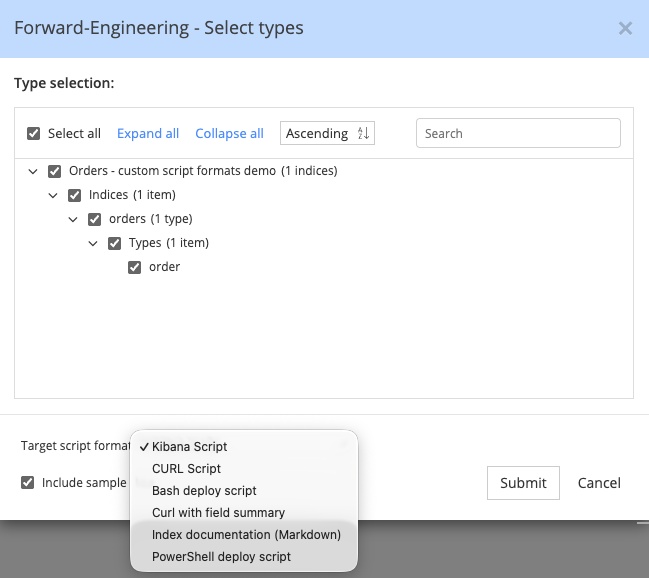
For an index, the script covers the index and all its entities. For an entity, it covers the entity and the settings of its index.
Note
In the script of an entity, the fields are one level deeper: in body.mappings.<entity name>.properties, with the entity name in lowercase, instead of body.mappings.properties. The examples below use the script of an index.
Example: a bash script with parameters and a conditional alias
Let's take an orders index with 3 shards and 1 replica, and three fields: order_id, order_date and customer_name, and generate its script from the Elasticsearch Mapping tab of the index. The operations team wants a bash script that:
- takes the host and the index name as parameters, with the values of the data model as defaults;
- reads the user and password from environment variables, never from the script;
- creates an alias only when the script runs in production.
The alias depends on the environment, and the data model has no property for it, so you leave the Aliases property of the index empty and write the alias command in the custom script format:
#!/bin/bash
# Usage: ./create-index.sh [host] [index] [environment]
ES_HOST=${1:-{{ host }}:{{ port }}}
INDEX=${2:-{{ indexName }}}
ENVIRONMENT=${3:-dev}

curl -u "$ES_USER:$ES_PASSWORD" -X PUT "$ES_HOST/$INDEX?pretty" -H 'Content-Type: application/json' -d '
{{ body | json: 4 }}
'

if [ "$ENVIRONMENT" = "prod" ]; then
  curl -u "$ES_USER:$ES_PASSWORD" -X POST "$ES_HOST/_aliases?pretty" -H 'Content-Type: application/json' -d '
{ "actions": [ { "add": { "index": "'"$INDEX"'", "alias": "'"$INDEX"'-current" } } ] }
'
fi
Hackolade Studio replaces the four placeholders with the data of the orders index and copies the rest of the custom script format:
#!/bin/bash
# Usage: ./create-index.sh [host] [index] [environment]
ES_HOST=${1:-localhost:9200}
INDEX=${2:-orders}
ENVIRONMENT=${3:-dev}

curl -u "$ES_USER:$ES_PASSWORD" -X PUT "$ES_HOST/$INDEX?pretty" -H 'Content-Type: application/json' -d '
{
    "settings": {
        "number_of_shards": 3,
        "number_of_replicas": 1
    },
    "mappings": {
        "dynamic": "true",
        "properties": {
            "order_id": {
                "type": "keyword",
                "index": true,
                "index_options": "docs"
            },
            "order_date": {
                "type": "date",
                "index": true
            },
            "customer_name": {
                "type": "text",
                "index": true,
                "index_options": "docs"
            }
        }
    }
}
'

if [ "$ENVIRONMENT" = "prod" ]; then
  curl -u "$ES_USER:$ES_PASSWORD" -X POST "$ES_HOST/_aliases?pretty" -H 'Content-Type: application/json' -d '
{ "actions": [ { "add": { "index": "'"$INDEX"'", "alias": "'"$INDEX"'-current" } } ] }
'
fi
The ${1:-...} syntax belongs to bash, not to the custom script format: Hackolade Studio copies it unchanged, and only replaces the parts between {{ and }}.
Reuse the standard formats in your custom script format
When you only need to add lines before or after the standard script, you don't have to rewrite it. Include it with the include tag and one of these names:
curlScript: the curl command of the CURL Script format;kibanaScript: the request of the Kibana Script format.
Let's extend the previous example with a comment block that lists the fields of the index before the standard curl command:
# Index {{ indexName }}: {{ body.settings.number_of_shards }} shards, replicas: {{ body.settings.number_of_replicas }}
{% for field in body.mappings.properties %}#   {{ field[0] }}: {{ field[1].type }}
{% endfor %}
{% include "curlScript" %}
The script starts with the comment block, followed by the curl command:
# Index orders: 3 shards, replicas: 1
#   order_id: keyword
#   order_date: date
#   customer_name: text

curl -X PUT 'localhost:9200/orders?pretty' -H 'Content-Type: application/json' -d '
{
    "settings": {
        "number_of_shards": 3,
        "number_of_replicas": 1
    },
    "mappings": {
        "dynamic": "true",
        "properties": {
            "order_id": {
                "type": "keyword",
                "index": true,
                "index_options": "docs"
            },
            "order_date": {
                "type": "date",
                "index": true
            },
            "customer_name": {
                "type": "text",
                "index": true,
                "index_options": "docs"
            }
        }
    }
}
'
A loop on an object, such as body.mappings.properties, returns each entry as a pair: field[0] is the name of the field, and field[1] its mapping.
Data available in a custom script format
A custom script format reads the index as you designed it in the data model. It starts from four variables. Three of them are simple values, and the fourth, body, holds the whole index: its settings, its aliases, and every field with all its properties.
host: the host of the data model, orlocalhostwhen the property is empty;port: the port of the data model, or9200when the property is empty;indexName: the name of the index, in lowercase;body: the request body that creates the index, as Hackolade Studio generates it for the Kibana Script and CURL Script formats.
For an orders index with a date format and a customer object field, a simplified body looks like this:
body
├── settings          number_of_shards, number_of_replicas, refresh_interval, analysis...
├── aliases           one entry per alias, with its filter and routing
└── mappings
    ├── dynamic
    └── properties    one entry per field
        ├── order_id
        │   ├── type      keyword
        │   └── index     true
        ├── order_date
        │   ├── type      date
        │   └── format    yyyy-MM-dd
        └── customer      an object field
            └── properties    the fields nested in it, with the same structure
Each field holds the properties you set for it in the data model: type, and, when they have a value, analyzer, format, ignore_above, null_value, copy_to, fields, meta and the other mapping parameters of its type. settings and aliases are present only when the index has values for them.
With this data, a custom script format can, for example:
- write a setting anywhere in the script, such as
{{ body.settings.number_of_replicas }}in a comment for the reviewer; - go through every field with
{% for %}, and write its name and type, as in the field summary example; - create each alias of the data model in a separate command, after the index;
- read the
metaproperty of a field, where you can store your own information, such as the owner of the field or its sensitivity, and write it in a summary.
A condition keeps a line only for some fields. These lines list the date fields with their format:
{% for field in body.mappings.properties %}{% if field[1].type == "date" %}#   {{ field[0] }}: {{ field[1].format | default: "default format" }}
{% endif %}{% endfor %}
The names inside body are those of the Elasticsearch API, as described in Create index API in the Elasticsearch documentation. The left panel of the Custom script format editor shows the complete structure, with a description of most properties.
Let an AI assistant write the custom script format
If your team already has a script it runs by hand, an AI assistant can turn it into a custom script format. The assistant needs two examples from you: the data that Hackolade Studio provides for one index, and the script you want for that same index.
- In Hackolade Studio, select an index, open the Elasticsearch Mapping tab of the central pane, and select the Kibana Script format. Copy the script: below its first line, it shows the
bodyvariable of this index, exactly as the custom script format receives it. - Take the script your team wrote for the same index, or write the script you want for it.
- Paste both into the prompt below, in place of the text between brackets, and send it to the AI assistant of your choice.
- Create a custom script format with the answer, as described in Create a custom script format, and compare the script that Hackolade Studio generates with your own script.
Write a custom script format for Hackolade Studio, target Elasticsearch v7 and above.
A custom script format is a Liquid template.

Each time Hackolade Studio generates the script of an index, it fills the custom script format
with the data of that index. The custom script format uses the Liquid syntax, as implemented by
LiquidJS. Use only standard LiquidJS tags and filters.

The custom script format can use these variables, and no others:
- host: the host of the data model ("localhost" by default)
- port: the port of the data model (9200 by default)
- indexName: the name of the index, in lowercase
- body: the request body that creates the index, with settings, aliases and mappings.
  Write it as JSON with the json filter, for example {{ body | json: 4 }}.
The custom script format can also include a standard script with {% include "curlScript" %}
(curl command) or {% include "kibanaScript" %} (Kibana request).

Here is the Kibana script that Hackolade Studio generates for one of my indices.
The first line is the request; the rest is the content of the body variable:

[paste the Kibana script]

Here is the script I want for this same index:

[paste your script]

Write the custom script format that produces this script for any index. Use a variable for
every value that comes from the index: its name, settings, aliases and fields.
Keep as fixed text everything that does not come from the data model. Then list
which parts you replaced with variables, and which parts you kept as fixed text.
The prompt sends the structure of your index to the AI assistant: follow your company's policy on AI tools. An AI assistant can also make mistakes, so read the list it gives at the end, and test the generated script before you run it on a cluster.
Store and share custom script formats
Each custom script format is saved as a file with its name and the .liquid extension. By default, the files are in the .hackolade/options/ELASTICSEARCHv7plus/custom-script-formats folder of your home folder. If you set a Custom properties folder in the Default Paths tab of Tools > Options, they are in the ELASTICSEARCHv7plus/custom-script-formats folder of that location.
The custom script formats are in the same folder as your custom properties. To share them with your team, follow Share customization with team members: the Git repository that holds your custom properties also holds your custom script formats.
What custom script formats do not cover
- The Command-Line Interface does not support custom script formats yet.
- Custom script formats apply to scripts that create indices. When you compare two data models with the Delta model, the dropdown does not list your custom script formats, and the alter script uses the standard formats.