

Options dialog
The Options dialog holds your preferences for Hackolade Studio: the default values of new objects, the display of diagrams, the default folders, and the parameters of reverse-engineering, forward-engineering and documentation. To open it, choose Tools > Options in the menu bar.
The tabs of the dialog are listed on the left, and each tab groups the options of one area:
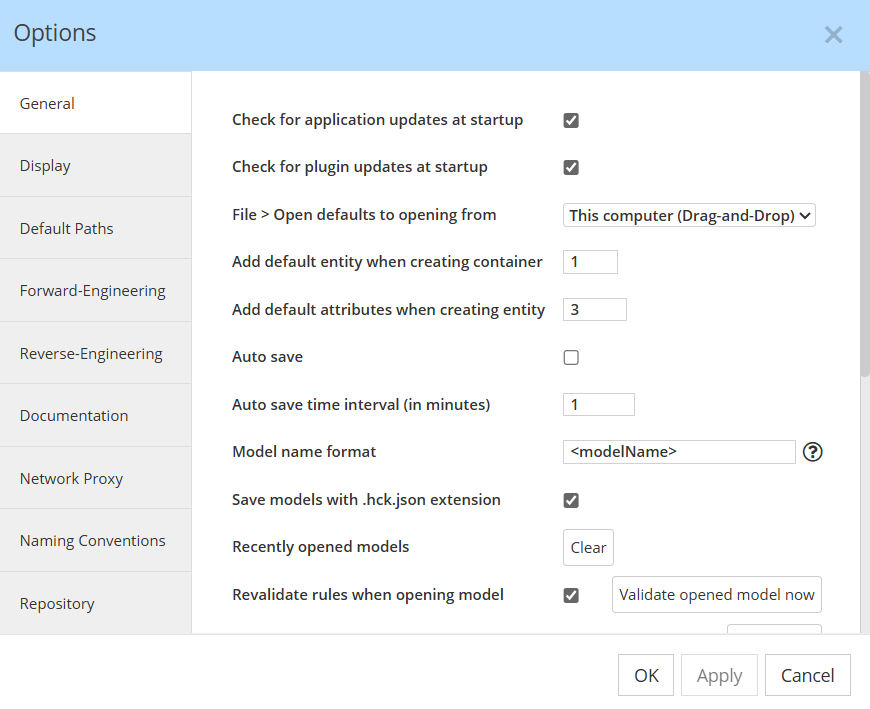
The changes that you make are kept when you switch from one tab to another. Click Apply to save them and keep the dialog open, OK to save them and close the dialog, or Cancel to close the dialog without saving the changes that you have not applied yet.
Where the options are saved
Hackolade Studio saves your options on your computer, or in the storage of your browser when you use the browser application, and they apply to all the models that you open. Some options are saved in other places:
- The options of the ERD(V) section of the Display tab are saved in the model, with the diagram that is displayed when you change them.
- The options of the Naming Conventions tab, and of the Script Generation and Excel Export sections of the Forward-Engineering tab, are saved for each target in files of the
.hackoladefolder of your home folder, or of the folder that you set in Default Paths > Custom properties. You can share these files with your team, as described in User-defined custom properties.
To move your options to another computer, use the Backup and Restore buttons at the bottom of the General tab.
Tabs and options that are not always shown
Some tabs and options depend on how you run Hackolade Studio and on your license:
- The Network Proxy and Repository tabs are shown in the desktop application only. The Repository tab also requires the Workgroup Edition.
- The Custom Properties tab is shown in the browser application only. In the desktop application, you select the folder of your custom properties in the Default Paths tab.
- The options Check for application updates at startup, Check for plugin updates at startup and Enable caching plugins are shown in the desktop application only. The two options that check for updates are hidden when your organization disallows updates with a deployment policy.
- Some options are dimmed, or show a message when you select them, if your edition of Hackolade Studio does not include the feature. This is the case for Lineage capture for new models, and for Target Script and Logo in the Documentation tab.
- Some labels use the terms of the target of the model that is open. For example, the option Include empty collections of the Reverse-Engineering tab is labeled Include empty tables for an Oracle model.
General tab
The General tab holds the options of the application as a whole, and the options for new models, entities and relationships.
- Check for application updates at startup: when Hackolade Studio starts, it checks whether a newer version of the application is available. The option is selected by default.
- Check for plugin updates at startup: when Hackolade Studio starts, it checks whether newer versions of the installed target plugins are available. The option is selected by default.
- File > Open defaults to opening from: the source that File > Open, its keyboard shortcut and its toolbar button open first. The choices are This computer (file explorer), which opens the file picker of your operating system and is the default, This computer (Drag-and-Drop), and the Git providers GitHub, GitHub Server, Azure DevOps, Bitbucket, GitLab, GitLab Server and Bitbucket Data Center. The Git providers are described in Open model from Git repo.
- Add default entity when creating container: the number of entities, from 0 to 3, that Hackolade Studio creates in each new container. The default is 1.
- Add default attributes when creating entity: the number of attributes, from 0 to 20, that Hackolade Studio creates in each new entity. The default is 3.
- Auto save and Auto save time interval (in minutes): when Auto save is selected, Hackolade Studio saves the open model to its file at each interval if the model has changes. When Auto save is cleared, or when the model has not been saved to a file yet, Hackolade Studio saves a copy of the model in a temporary folder at the same interval, and offers to recover this copy if the application closes unexpectedly. Models opened from a remote Git repository with File > Open From are not saved automatically. Auto save is cleared by default, and the interval is 1 minute, from 1 to 100. In the browser application, auto save is available only in browsers that allow web pages to save files.
- Model name format: the file name that Hackolade Studio proposes when you save a new model or use File > Save As. You can combine text with the keywords
<modelName>,<target>,<version>,<author>and<dbVendor>, which are replaced by the values of the model properties. Hover over the question mark to see the keywords. The same format is used for the default names of some files generated from the model, such as the reports of Verify Data Model. The default is<target> model <modelName>. - Save models with .hck.json extension: the file of a model ends with
.hck.jsoninstead of.json, so that you can tell your models apart from other JSON files, such as JSON Schema files or OpenAPI documents. The option is selected by default. - Recently opened models: click Clear to empty the list of recently opened models, shown in File > Open Recent and on the Welcome page, and the list of recently used files of external definitions.
- Revalidate rules when opening model and Validate opened model now: Hackolade Studio checks the values of the properties against the rules of the target and marks the invalid values. Select Revalidate rules when opening model to check all the objects of each model when you open it, which takes longer for a large model. The option is cleared by default. Click Validate opened model now to check all the objects of the model that is open. The checks are described in Validation of property values.
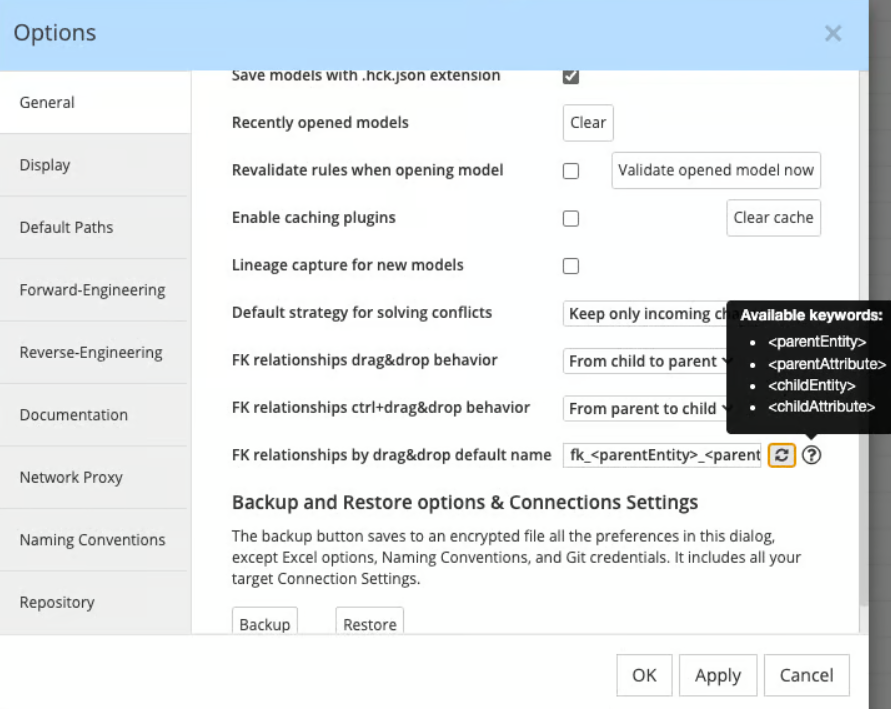
- Enable caching plugins and Clear cache: Hackolade Studio keeps a copy of the target plugins in a cache on your computer. The option is selected by default. Click Clear cache to empty the cache; Hackolade Studio then offers to restart so that the plugins are loaded again.
- Lineage capture for new models: lineage capture is enabled in each new model, so that Hackolade Studio records where its objects come from, as described in Lineage capture. The option is cleared by default. Click Clear lineage capture to remove all the lineage data from the model that is open.
- Default strategy for solving conflicts: when the same model was changed locally and in the remote Git repository, Hackolade Studio merges some metadata automatically, such as the positions of entities in the ERD. This option sets which version of this metadata is kept: Keep only incoming changes, the default, or Keep only local changes. The same option is shown in the Repository tab, and it is described in Solve conflicts.
- FK relationships drag&drop behavior and FK relationships ctrl+drag&drop behavior: the direction in which you drag one attribute onto another in the ERD to create a foreign key relationship. With From child to parent, you drag the attribute of the child entity onto the primary key of the parent entity. With From parent to child, you drag the primary key of the parent entity onto the child entity, where Hackolade Studio can also create the foreign key attribute, which is useful in dimensional modeling. By default, drag-and-drop goes from child to parent, and Ctrl+drag-and-drop goes from parent to child. When you change one of the two options, Hackolade Studio sets the other one to the opposite direction. Both behaviors are described in Relationship lines in ER diagram.
- FK relationships by drag&drop default name: the pattern of the name of a foreign key relationship that you create by drag-and-drop, with the keywords
<parentEntity>,<parentAttribute>,<childEntity>and<childAttribute>. The default isfk_<parentEntity>_<parentAttribute>_to_<childEntity>_<childAttribute>, and the button next to the field restores it. The pattern is described in Pre-populate properties with default values.
When you scroll down, the General tab shows the options for foreign key relationships and the Backup and Restore buttons:
Backup and restore of your options
Under Backup and Restore options & Connections Settings, click Backup to save to an encrypted file all the options of this dialog, except the Excel options, the naming conventions and the Git credentials. The file also contains the connection settings of all your targets. Click Restore to load such a file, for example on a new computer, as described in Moving to another computer.
Display tab
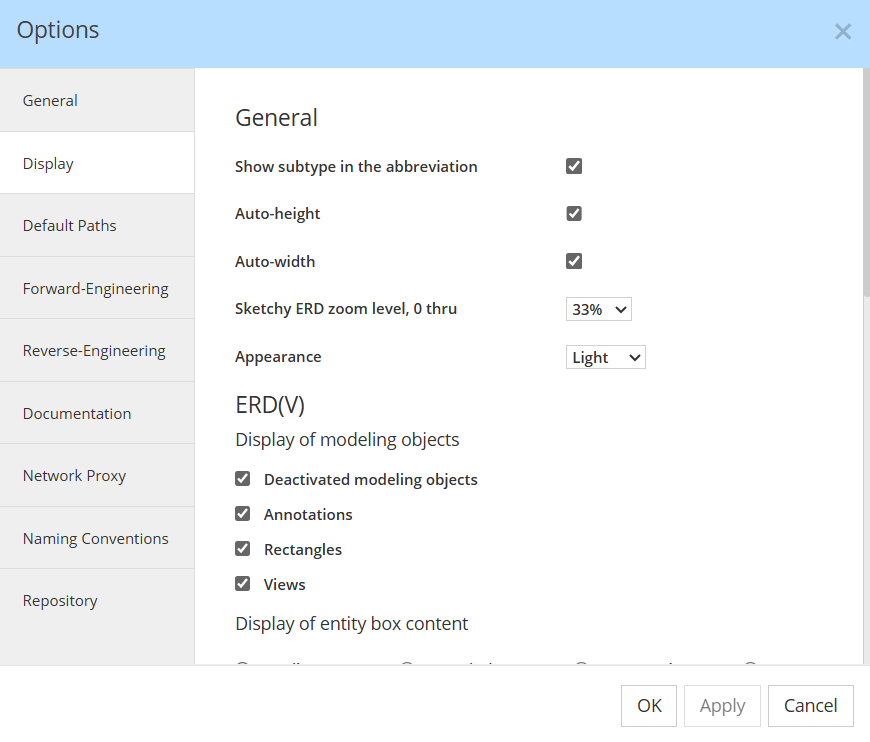
The Display tab holds the options of the diagrams. It has four sections: General, ERD(V), Hierarchical schema view and Graph targets.
General section
- Show subtype in the abbreviation: in the entity boxes and in the hierarchical schema view, the data type of an attribute is shown with its most specific value, such as its subtype, mode or format, instead of the abbreviation of its type. The option is selected by default.
- Auto-height and Auto-width: an entity box in the ERD grows or shrinks when you add or remove attributes. Both options are selected by default. You can change this behavior for a single entity in the Options tab of its Properties pane, as described in Display options.
- Sketchy ERD zoom level, 0 thru: at zoom levels from 0 up to this value, Hackolade Studio draws a sketchy rendition of the ERD, so that a large diagram is displayed faster, as described in Central pane. The choices go from 10% to 400%, and the default is 33%.
- Appearance: the colors of the application, Light or Dark, or System to follow the setting of your operating system.
ERD(V) section
The options of the ERD(V) section apply to the ER diagram or the diagram view that is displayed when you open the dialog, and they are saved with this diagram in the model. The same options are available from the Display Options button of the toolbar and from View > Display Options, as described in Display options:

When a model has no display options saved for its main ERD yet, Hackolade Studio uses the options that you last applied to a main ERD. A new diagram view starts with the default values below.
Under Display of modeling objects, the options show or hide objects in the diagram. They are all selected by default:
- Deactivated modeling objects: the containers, entities, attributes, views and relationships that are deactivated.
- Annotations and Rectangles: the symbols that you draw in the diagram.
- Views: the views of the model, for the targets that have views.
Under Display of entity box content, you choose what the entity boxes show: Attributes, the default, Description to show the description of the entity instead of its attributes, Name only to show the name of the entity only, or Empty. With Attributes, more options are shown:
- Drag-and-Drop handles: the handles that you use to move attributes within an entity or to another entity. The option is selected by default.
- Unspecified elements (API targets): this option is shown for API targets only, such as OpenAPI, and it is selected by default.
- Data types: the data type of each attribute. Clear this option for a more conceptual view of the diagram. The option is selected by default.
- Primary keys at top: the primary key attributes are listed at the top of the entity box, whatever their position in the entity. The option is selected by default.
- Show only, with Primary keys, Foreign keys, Unique keys and Required attributes: the entity boxes show only the attributes of the kinds that you select. These options are cleared by default.
Under Display of relationships:
- Names: the names of the relationships. The option is cleared by default.
- Roles and Verbs: the roles and verbs of the relationships, which you describe in Polyglot models as explained in Conceptual to Logical with Polyglot relationships. Both options are selected by default.
- Foreign master relationships: the relationships that document a denormalization. The option is selected by default.
Hierarchical schema view section
- Show details: the details of the attributes in the hierarchical schema view, as with the Toggle details button described in Attribute boxes in hierarchical schema view. The option is selected by default.
Graph targets section
These options apply to the diagrams of graph targets, such as Neo4j or TinkerPop, which are described in Graph shapes. Some labels use the terms of the target, for example Node label default size for Neo4j and Vertex label default size for TinkerPop.
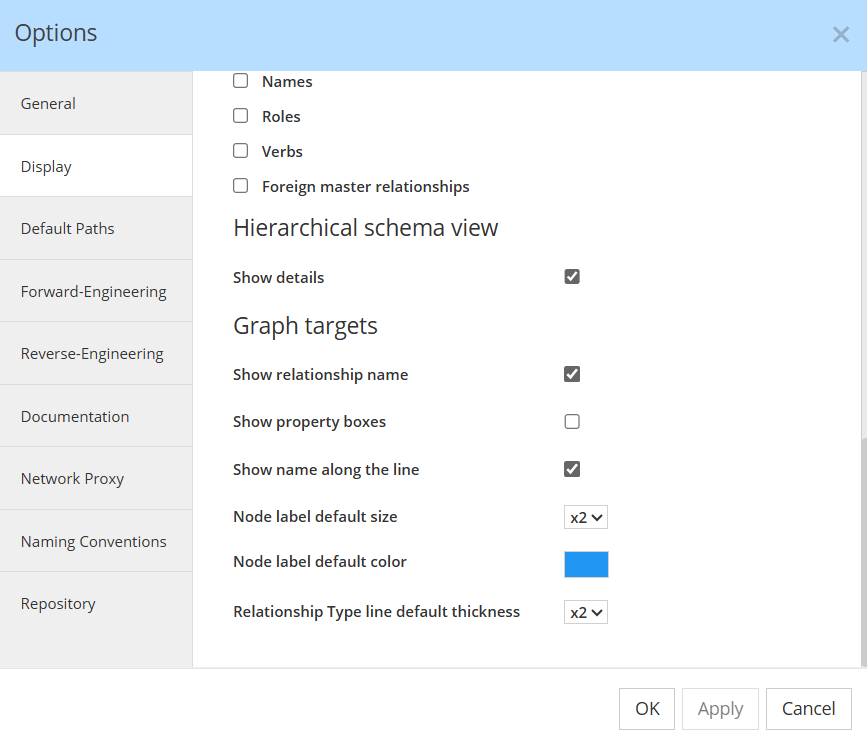
- Show relationship name: the names of the relationships. The option is selected by default.
- Show property boxes: the boxes with the properties of the node labels and relationships. The option is cleared by default.
- Show name along the line: the name of a relationship follows its line instead of being horizontal. The option is cleared by default.
- Node label default size: the size of the circle of a new node label, from x1 to x5. The default is x2.
- Node label default color: the color of the circle of a new node label. The default is blue.
- Relationship Type line default thickness: the thickness of the line of a new relationship, from x1 to x4. The default is x2.
Default Paths tab
The Default Paths tab sets the folder where the file picker opens the first time that you use each feature, as described in Default paths and file picker behavior:
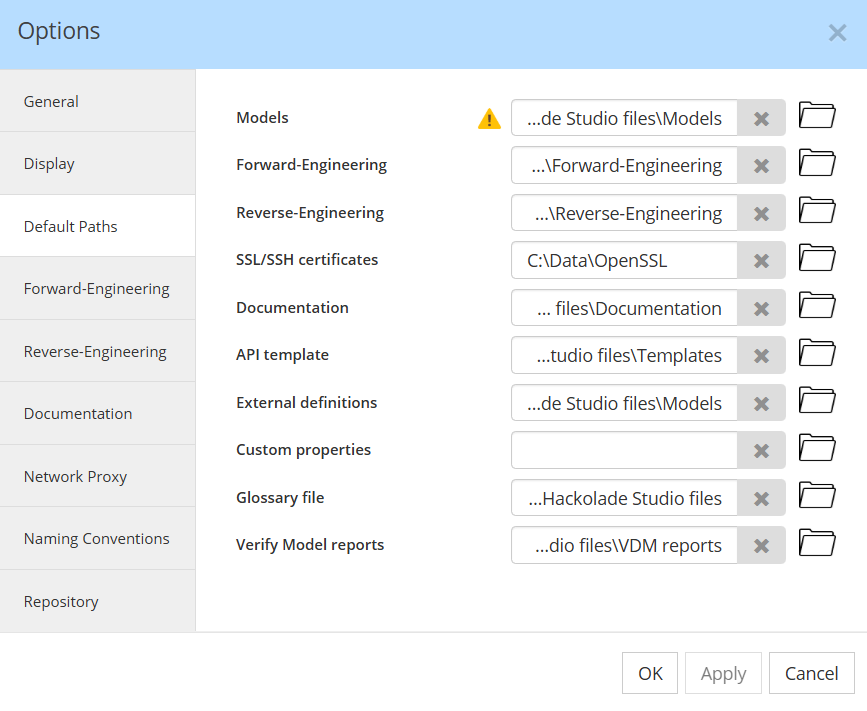
- Models: the models that you open and save. When a Git repository is open in the Workgroup Edition, Hackolade Studio ignores this path and opens the file picker at the root of the repository.
- Forward-Engineering: the files that you generate with forward-engineering.
- Reverse-Engineering: the files that you reverse-engineer.
- SSL/SSH certificates: the certificate and key files of your connection settings.
- Documentation: the documentation that you generate.
- API template: the template models for Model-Driven API Generation.
- External definitions: the files that you reference as external definitions.
- Custom properties: the folder of your custom properties, and of the options files of each target. When the field is empty, which is the default, Hackolade Studio uses the
.hackoladefolder of your home folder. - Glossary file: the files of your glossaries of business terms.
- Verify Model reports: the reports of Verify Data Model.
In the desktop application, each path is your home folder by default, except Custom properties. In the browser application, only Models and Reverse-Engineering are shown, and only in browsers that allow web pages to open folders.
Forward-Engineering tab
The Forward-Engineering tab holds the options of the files and scripts that Hackolade Studio generates from your models.
Sample Document, Schema, Script section
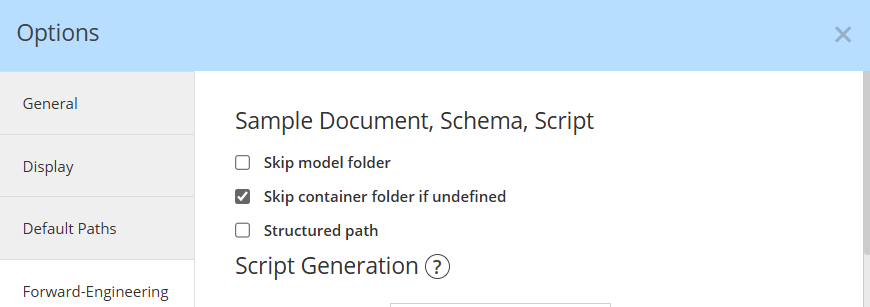
When you forward-engineer one file per entity, Hackolade Studio saves the files in a folder named after the model, with one subfolder for each container. These options change this structure and the file names:
- Skip model folder: the files are saved directly in the folder that you select, without the folder of the model. The option is cleared by default.
- Skip container folder if undefined: the entities that are not in a container are saved in the folder of the model, instead of a subfolder for the undefined container. The option is cleared by default.
- Structured path: the name that Hackolade Studio proposes for a generated file contains the model name, the model version and the kind of output. When the option is cleared, the proposed name is the model name only. The option is selected by default.
Script Generation section
The Script Generation section sets how Hackolade Studio writes the DDL scripts of each target. Choose the target in Application target, then choose for each kind of constraint or comment whether it is written In CREATE statement, In separate statement, or ignored with Ignore. A choice that the database does not support is shown as N/A. For some targets, the section only lets you include or ignore the comments, and for targets that have no script options, it shows a message:
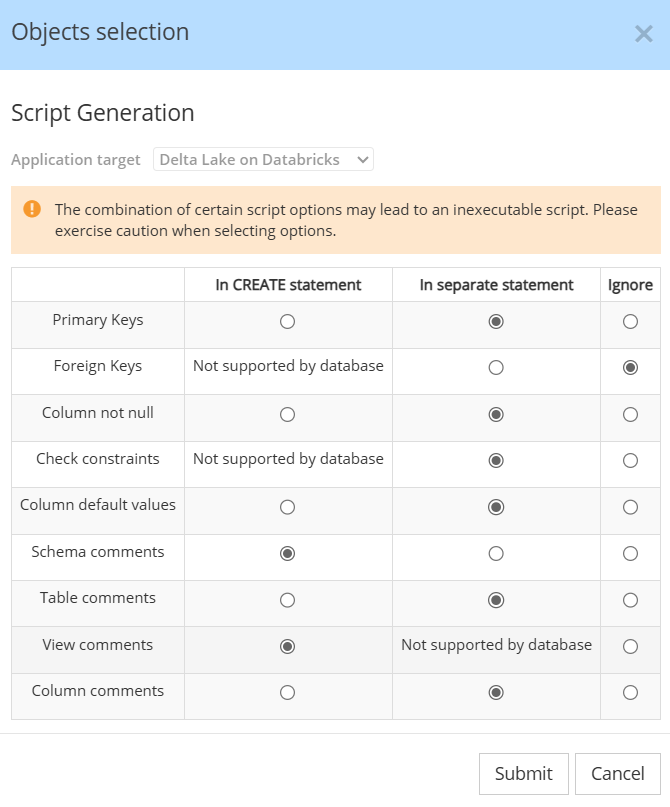
Some combinations of options can produce a script that does not run, so check the script after you change them. The options are described in Target-specific.
In the desktop application, for the targets that support custom script hooks, the section also lets you select a file for each hook point. Hackolade Studio inserts the content of these files in the scripts of all the models of the target: before the hooks of the model for a hook that runs before a statement, and after the hooks of the model for a hook that runs after a statement.
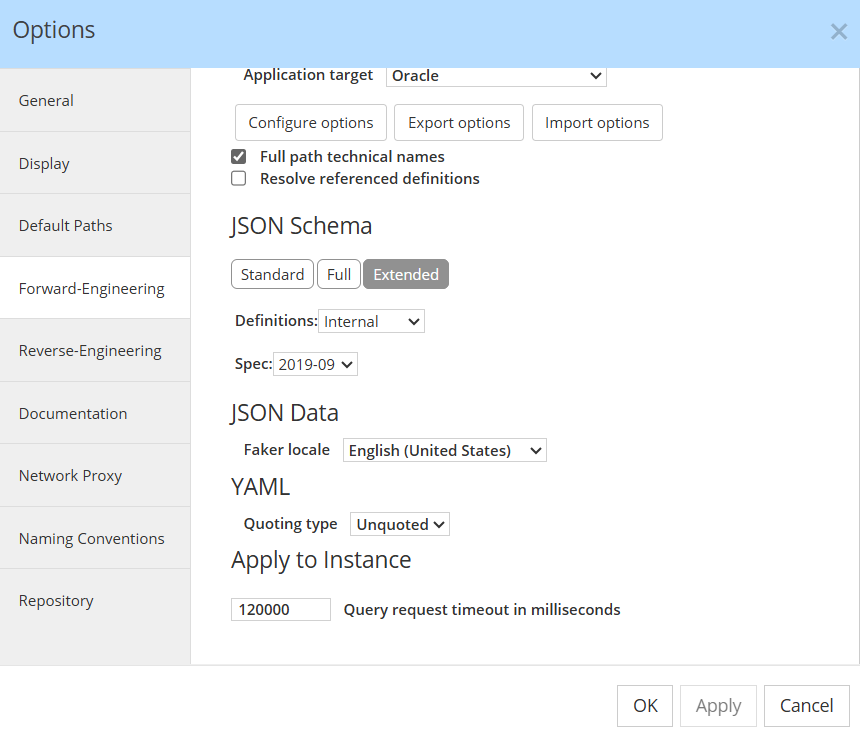
Excel Export section
The Excel Export section sets which properties Hackolade Studio exports to Excel for each target, as described in Excel file:
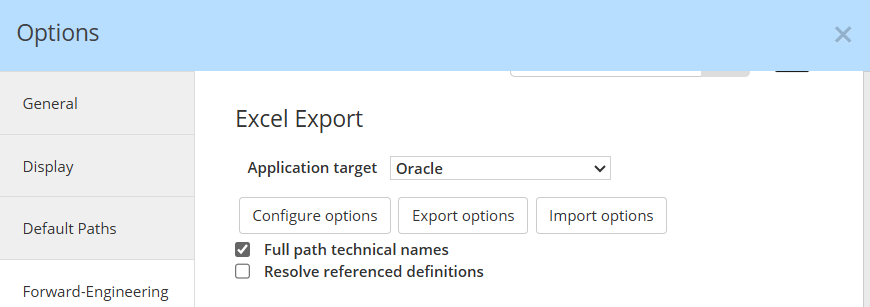
- Application target: the target whose options you edit.
- Configure options: opens the selection of the properties to export for this target.
- Export options and Import options: save the options of the target to a JSON file, or load them from such a file, so that you can share them in your organization.
- Full path technical names: the option is selected by default.
- Resolve referenced definitions: the structure of a referenced definition is exported in each place where the definition is referenced. Leave this option cleared when you plan to edit the Excel file and import it back into the model. The option is cleared by default.
JSON Schema section
The JSON Schema section sets how Hackolade Studio generates JSON Schema by default, as described in JSON Schema:
- The compliance level: Standard, the default, Full or Extended.
- Definitions: Referenced, the default, Resolved or Internal.
- Spec: the version of the JSON Schema specification, Draft-04, the default, Draft-06, Draft-07, 2019-09 or 2020-12.
JSON Data section
- Faker locale: the language and country of the sample values that Hackolade Studio generates with Faker functions, as described in Generate mock data for testing. The default is English.
YAML section
- Quoting type: how Hackolade Studio quotes the string values in the YAML that it generates: Unquoted, the default, Double or Single.
Apply to Instance section
- Query request timeout in milliseconds: how long Hackolade Studio waits for the answer of the database when you apply a script to an instance. The default is 120000, which is 2 minutes.
Reverse-Engineering tab
The Reverse-Engineering tab holds the options that Hackolade Studio uses when it reads the data of a database instance or of files to infer a schema, as described in Reverse-engineering. Several labels use the terms of the target, for example records, documents or items.
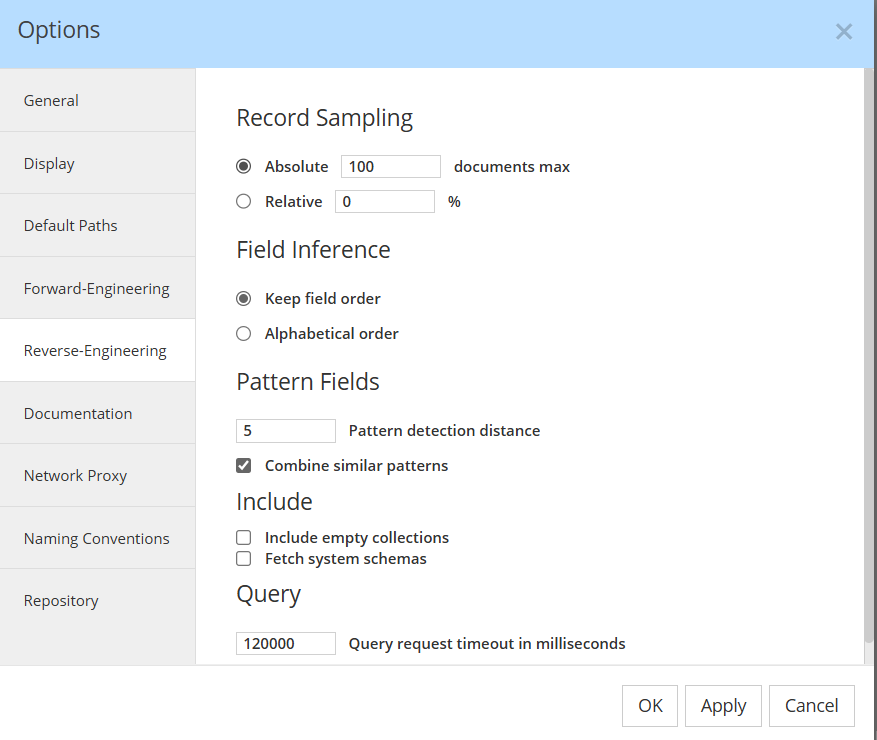
- Record Sampling: the number of records that Hackolade Studio reads in each collection. With Absolute, the default, you enter a number, from 1 to 10000, and the default is 1000. With Relative, you enter a percentage of the records, and the default is 10%. A large sample makes the reverse-engineering slower, as described in Sampling of one or more collections/entities.
- Field Inference: the order of the attributes in the model. With Keep field order, the default, the attributes are in the order found in the data. With Alphabetical order, they are sorted by name.
- Pattern Fields: the options of the detection of pattern fields. Pattern detection distance is the number of characters by which the names of fields can differ to be grouped in one pattern field, from 1 to 100, and the default is 1. With Combine similar patterns selected, Hackolade Studio also groups fields that have the same structure in one pattern field. This option is cleared by default. The detection is described in Pattern field detection.
- Include empty collections: the collections that contain no data are added to the model. The option is cleared by default.
- Fetch system schemas: the system collections or schemas of the database are listed with the others, so that you can select them. The option is cleared by default, and it is not shown for DynamoDB.
- Query request timeout in milliseconds: how long Hackolade Studio waits for the answer of the database to a query. The default is 120000, which is 2 minutes.
- Enable query pagination and Documents per page: for Couchbase only, Hackolade Studio reads the documents in pages of this size. The value cannot be greater than the absolute record sampling. Pagination is cleared by default, and the default page size is 1000.
Documentation tab
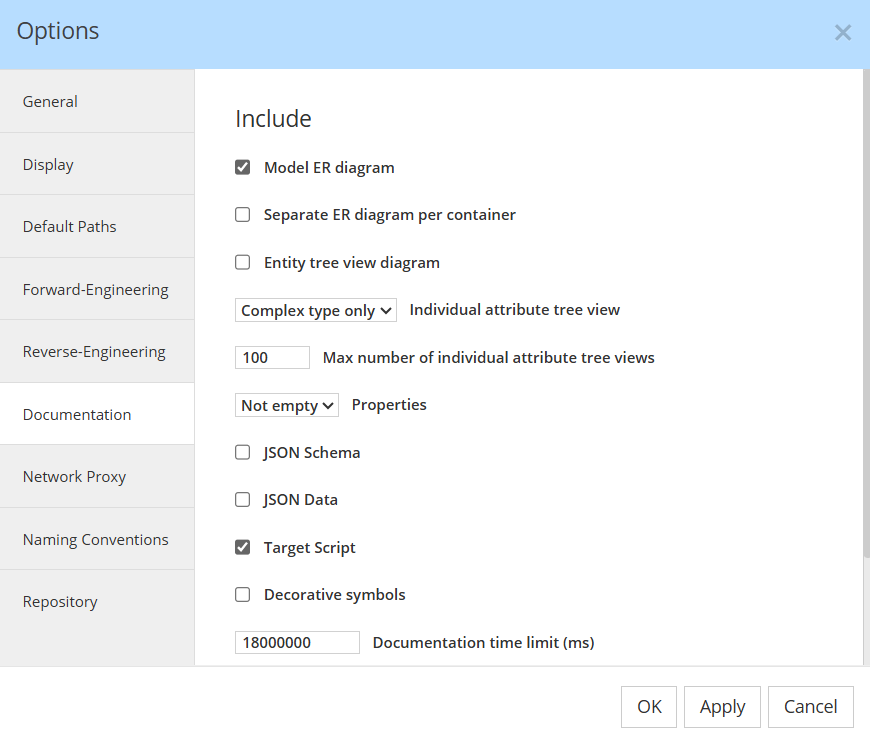
The Documentation tab sets the content of the documentation that you generate with File > Generate Documentation, as described in Generate documentation.
Under Include:
- Model ER diagram: the ER diagram of the model. The option is selected by default.
- Separate ER diagram per container: one ER diagram for each container. The option is cleared by default.
- Entity tree view diagram: the hierarchical schema view of each entity. The option is cleared by default.
- Individual attribute tree view: a separate tree view for All the attributes, for the attributes of a Complex type only, which is the default, or for None.
- Max number of individual attribute tree views: the maximum number of these tree views in the documentation. The default is 100 with Complex type only, and 300 with All.
- Properties: the properties of each object, All of them, only those that are Not empty, which is the default, or None.
- JSON Schema and JSON Data: the JSON Schema and a sample JSON document of each entity. Both options are cleared by default.
- Target Script: the script of each entity for the target. The option is selected by default.
- Decorative symbols: the annotations and rectangles that you draw in the diagrams. The option is selected by default.
- Documentation time limit (ms): the maximum time for generating the documentation. The default is 600000, which is 10 minutes.
Under Customization, the Logo is an image file (JPEG, PNG, GIF or SVG) that Hackolade Studio shows at the top of the documentation.
Network Proxy tab
In the desktop application, the Network Proxy tab sets how Hackolade Studio connects to the Internet through a proxy server, as described in Network proxy:

- Use system proxy setting (recommended): the default.
- Use HTTPS_PROXY environment variable.
- Proxy Configuration File, with the URL of the .pac file that your network administrator provides.
- Use manual proxy, with the Proxy address, the Port, and a User name and Password if the proxy server requires authentication.
Click Test to check the connection to the proxy server. When you change the proxy settings, Hackolade Studio asks you to restart the application.
Naming Conventions tab
The Naming Conventions tab sets how Hackolade Studio converts business names into technical names, or technical names into business names, for each target.
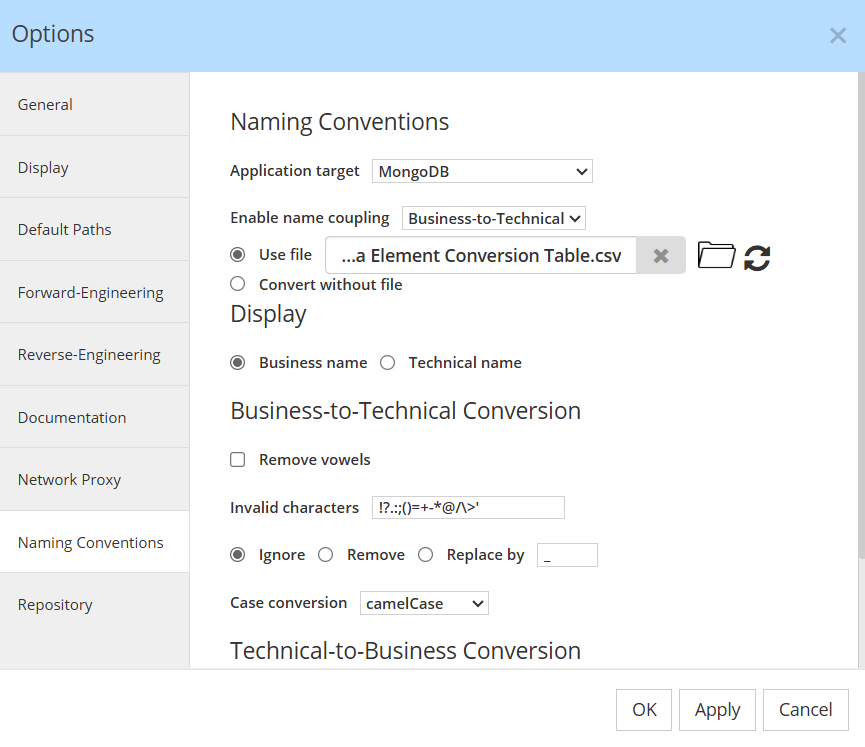
The options are described in Naming conventions:
- Application target: the target whose naming conventions you edit.
- Enable name coupling: No, the default, Business-to-Technical (recommended) or Technical-to-Business.
- Display: whether the diagrams and the Object Browser show the Business name, the default, or the Technical name of objects.
- Business-to-Technical Conversion and Technical-to-Business Conversion: the conversion file and the conversion rules, such as the case conversion.
- Export options and Import options: save the naming conventions of the target to a JSON file, or load them from such a file.
- Apply options to current model: applies the naming conventions to the model that is open.
Custom Properties tab
In the browser application, the Custom Properties tab lets you download the template files of custom properties and select the folder of your custom properties for each target, as described in User-defined custom properties. After you select a folder, click Reload application for the change to take effect.
Repository tab
In the desktop application with the Workgroup Edition, the Repository tab holds the options of Git repositories:
- Detection of Hackolade models: how Hackolade Studio finds the models in a repository: *.hck.json for all the files that end with
.hck.json, *.json for all the files that end with.json, or auto to scan the content of the files, which can be slow for a large repository. The default follows the option Save models with .hck.json extension of the General tab. The three choices are described in Explore files. - Keep last repository opened: Hackolade Studio opens again, when it starts, the repository that was open when you closed it, as described in Open a local repository. The option is selected by default.
- Check for remote commits every: Hackolade Studio checks the remote repository for new commits at the interval, in seconds, that you enter next to the option. The option is selected by default, with an interval of 60 seconds.
- Default strategy for solving conflicts: the same option as in the General tab.
- Git client: the Git executable that Hackolade Studio uses. System PATH (recommended), the default, uses the Git executable that is declared in the
PATHenvironment variable of your system. With Custom path to Git executable, you select the Git executable yourself; it must be the native Git executable, not a graphical application. - Run diagnostic: checks that the Git client is available and executable, and shows its version. If a check fails, see Pre-requisites.