

Convert a physical model to Polyglot
Deriving from a Polyglot model pulls its objects into the open model. Converting works in the opposite direction: it pushes the content of the open model into a Polyglot model. The typical case is a physical model obtained by reverse-engineering an existing database, which becomes the starting point of a Polyglot model, and optionally a model derived from it.
Note: a Polyglot model cannot be converted into another Polyglot model. But a Polyglot model can be derived from another Polyglot model. To build a chain of Polyglot models, not from scratch but from an existing database, i.e. going back up the chain, follow the steps in Build a Polyglot chain from an existing database.
For the concepts behind Polyglot models and derived models, consult the Polyglot Data Modeling page.
Start the convert operation
To convert a physical model, open the model and select Tools > Polyglot > Convert to Polyglot Model.... All the options are grouped in one dialog:
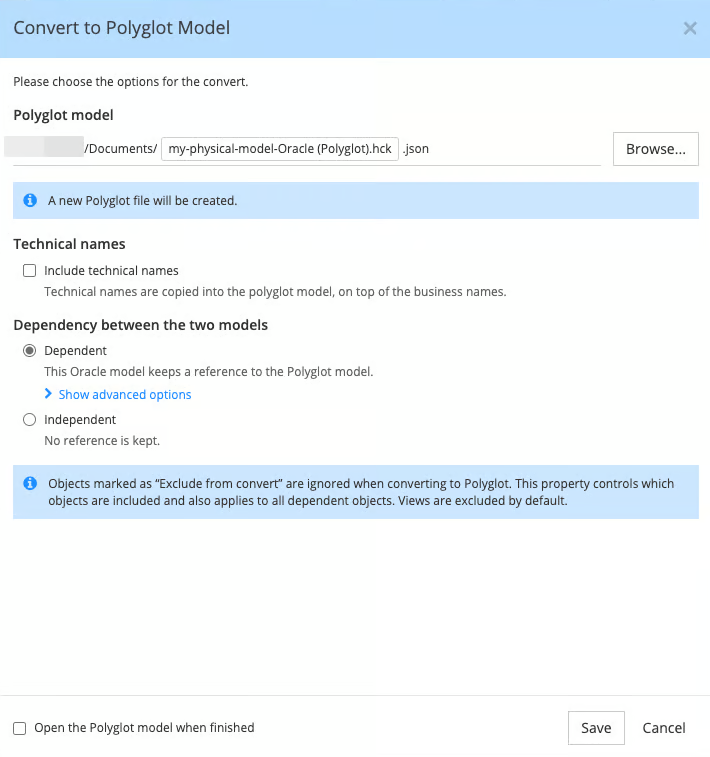
Nothing is converted until you click Save. Cancel closes the dialog without converting anything.
Choose the Polyglot model file
The Polyglot model field is pre-filled with the name of the open model followed by "(Polyglot)", in your default models folder (see Default paths and file picker behavior). Edit the path, or click Browse... to pick an existing file or type a new file name.
Hackolade Studio displays a message under the field, depending on the file:
- the file does not exist: "A new Polyglot file will be created."
- the file is an existing Polyglot model: you choose between Merge and Overwrite, as described below.
- the file exists but is not a Polyglot model, or it cannot be read: an error message is displayed, and the Save button remains disabled until you choose a valid file candidate.
The Polyglot model is always created as a local file, which should generally be the locally-clone repo folder. To store it in a different repository, follow the steps in Convert model into a Polyglot in another repository.
Note: in the browser, the dialog has no Browse... button, and you cannot merge into an existing Polyglot model. Choose the options, then click Save: Hackolade Studio displays a save dialog, where you choose the location of the Polyglot model file. Since Independent is also forced in the browser (see below), a convert in the browser currently produces a standalone Polyglot model. To merge into an existing Polyglot model, or to make the models dependent, you must currently use the desktop application.
Merge into an existing Polyglot model, or overwrite it
When the path points to an existing Polyglot model, choose what to do with its content:
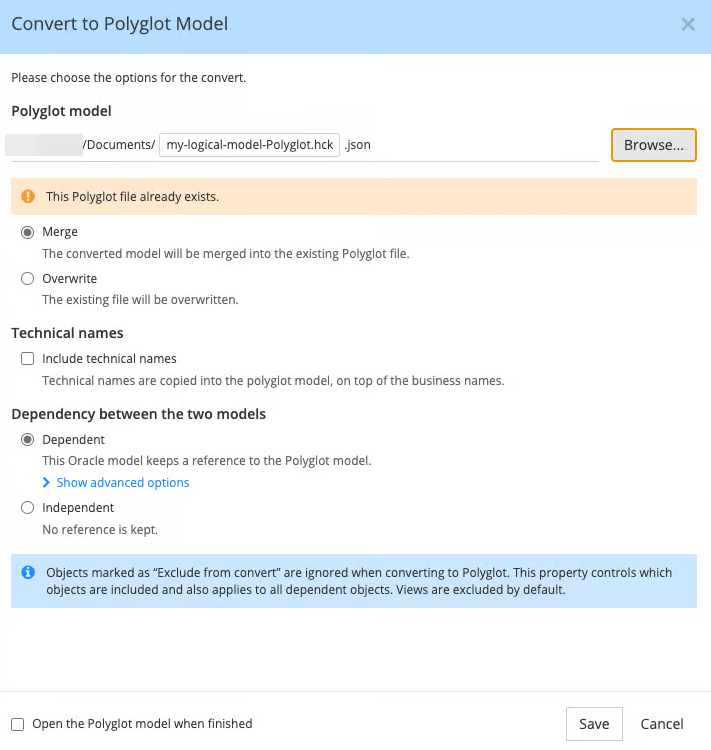
- Merge (default): the converted content is merged into the existing Polyglot model. For matched objects, the values of the converted model replace those of the Polyglot, except where the converted model has no value. Objects that exist only in the Polyglot are kept.
- Overwrite: the content of the file is replaced by the converted model.
With a merge, you can combine several physical models into a single Polyglot model, or keep a Polyglot model up to date with a production database. Examples are detailed in the section Model compare and merge use cases. For the handling of technical names during a merge, consult Handling technical names during convert and merge to an existing Polyglot.
Include technical names
By default, the Polyglot model receives the business names of the original model only. Check Include technical names to copy the technical names too.
Copied technical names stay exactly as they are in the original model: Hackolade Studio does not reproduce name coupling in the Polyglot, and does not apply the Polyglot naming conventions during conversion. What happens next to these technical names, in the Polyglot and in a dependent model, is described in Handling when converting to a Polyglot model, and for a merge in Handling technical names during convert and merge to an existing Polyglot.
Make the models dependent or independent
Under Dependency between the two models, choose:
- Dependent (default): the open model keeps a reference to the Polyglot model, and becomes a derived model, just as if it had been generated from the Polyglot through a normal derivation. The Polyglot model becomes the master of changes: you make changes there, then update the derived model references to review and pull the relevant changes.
- Independent: no reference is kept. The open model remains unchanged and follows its own lifecycle.
With Dependent, the reference is stored as a path relative to the open model. To store an absolute path instead (which is not recommended, unless you have a good reason to do so...), expand the advanced options under Dependent, and check Reference the model by absolute path instead of relative:
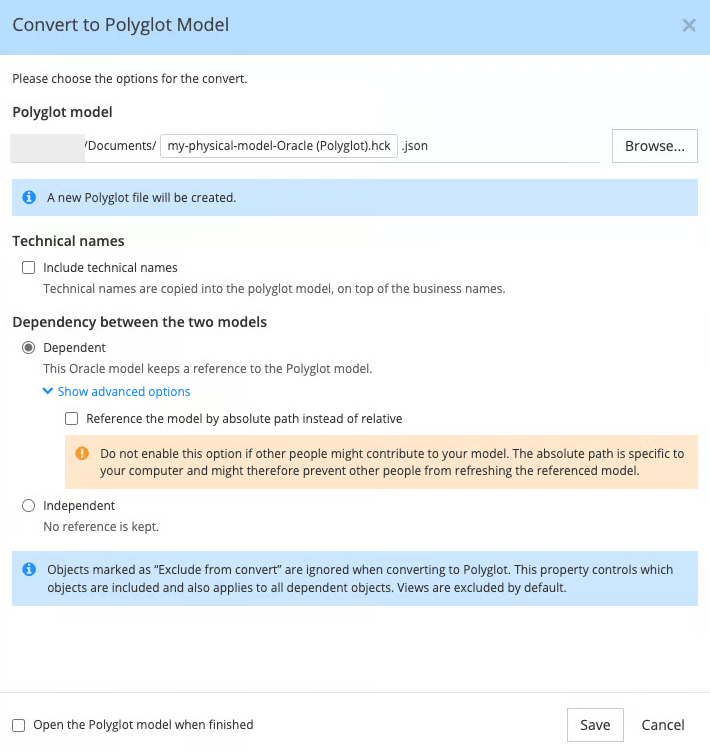
Do not enable this option if other people might contribute to your model. The absolute path is specific to your computer, and might therefore prevent other people from refreshing the referenced model.
A relative path requires the open model to have a location. If the open model has never been saved, Hackolade Studio displays a dialog to save it first when you click Save. Choose Save in this dialog to save the model; the conversion starts right after. Cancel brings you back to the convert dialog, with your options unchanged.
Dependent is not currently available when the model is opened directly from a remote repository (i.e. not from your locally cloned repo), or in the browser: Independent is then forced. To manage Polyglot references for a model opened directly from a repository, you must currently clone the repository locally, and use the desktop application.
If the open model already references a Polyglot model, a note is displayed in the dialog. When you merge into the Polyglot model the open model is derived from, the existing references are kept. In every other case (another file, a new file, or Overwrite), the references may be replaced.

Control what is converted
There is no selection dialog during conversion, unlike when deriving from a Polyglot model. The conversion includes all modeling objects that are not marked with the Exclude from convert property in the Properties Pane. The dialog recalls this rule in a note.

This property is disabled by default for all objects, which means they are included in the conversion. Views are the exception: they are excluded by default because they are often more physical than conceptual. If needed, you can include specific views by disabling this property before running the conversion.
When an object is excluded, all objects that depend on it are excluded too, so that the Polyglot model does not contain incomplete structures. For example, if an entity is excluded, any relationship involving that entity is not transferred; if a definition is excluded, references to it are not included; and if a container is excluded, all of its contents are excluded as well.
MongoDB pipeline views and Oracle duality views are never converted.
Data types are mapped to Polyglot data types with the matrix described in Data type mapping.
Finish the convert operation
Before clicking Save, choose whether to open the Polyglot model at the end, with the checkbox Open the Polyglot model when finished.
From then on, make your changes in the Polyglot model, and update the derived model to pull them, as described in Maintain and update the target model.