

Install and start the server
Overview
The Hackolade Model Hub is delivered as a Docker image that you run on a server. Once started, users access the Model Hub from a browser to navigate the data models with capabilities to search, browse, drill-down, where-used, lineage, etc. The source-of-truth remains the Git repositories where the data models are maintained.
You can deploy the Model Hub with Docker Compose, Kubernetes, or any orchestrator that runs containers. For a straightforward first installation, Docker Compose is recommended.
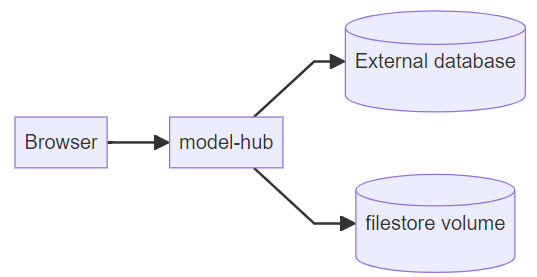
This page explains what each component does and how to configure a typical deployment to connect to a database controlled by the customer while external to the Model Hub container.
What gets deployed?
A Model Hub installation is made of standard components, with a secrets vault:
| Component | Role |
|---|---|
| model-hub | The Model Hub application. Serves the web UI and APIs. Users connect to this process (default port `3000`) |
| Database | An external PostgreSQL or Oracle database that stores Model Hub data. You must provision and operate this database yourself. |
| Secrets | Sensitive values such as the database password and an encryption key for storing sensitive configuration. Prefer Docker secrets (or your platform’s equivalent) over plain environment variables. |
Pull images
Each new version of Model Hub is published on DockerHub. You may specify the version to pull with
export MODEL_HUB_VERSION=<target-model-hub-version>
docker pull hackolade/model-hub:$MODEL_HUB_VERSION
The database can be self-standing (installed on a host) or packaged as a container image. The app server and the database can be on separate machines.
Quick start with Docker Compose and self-standing PostgreSQL database
The example below deploys the Model Hub application against an external PostgreSQL database. For a quick start with PostgreSQL deployed on the same server, check the instructions in the next section below.
1. Create the project layout
model-hub-deploy/
├── .env
├── docker-compose.yml
└── secrets/
    └── db_password                       # the database password
    └── model_hub_encryption_key          # the encryption key
Create the password file and do not commit it to source control.
The encryption key needs to be a 64-character hex string. This encryption key is used to encrypt sensitive information like your Git Provider configuration in the database
To generate one, you can run the following command:
openssl rand -hex 32
2. Example of docker-compose.yml
Update DB_CONNECTION (and, if needed, DB_USERNAME) so they match your database host, port, database name, and user.
services:
  model-hub:
    image: hackolade/model-hub:${MODEL_HUB_VERSION}
    deploy:
      restart_policy:
        condition: always
        delay: 5s
        window: 30s
    ports:
      - "3000:3000"
    environment:
      DB_TYPE: pg
      DB_CONNECTION: pg://<db-host>:5432/<database>
      DB_USERNAME: <db-user>
      DB_PASSWORD_FILE: /run/secrets/db_password
      CURRENT_ENCRYPTION_KEY_FILE: /run/secrets/model_hub_encryption_key
    secrets:
      - db_password
      - model_hub_encryption_key
networks:
  default:
    name: hub
secrets:
  db_password:
    file: ./secrets/db_password
  model_hub_encryption_key:
    file: ./secrets/model_hub_encryption_key
where:
| Setting | Meaning |
|---|---|
| DB_TYPE | Database driver. Use pg for PostgreSQL or oracledb for Oracle. |
| DB_CONNECTION | How the application reaches the database. Format depends on the database (see below). |
| DB_USERNAME | Database user |
| DB_PASSWORD_FILE | Path inside the container to a file containing the password. |
Plain text | Default HTTP port of the Model Hub process. |
Plain text | Path inside the container to a file containing the encryption key |
3. Edit the .env variable
The .env file supplies values to Docker Compose substitution. Change the value of MODEL_HUB_VERSION with the version you want to deploy from DockerHub.
MODEL_HUB_VERSION=REPLACE_WITH_MODEL_HUB_VERSION
4. Start the stack
From the directory that contains docker-compose.yml
docker compose up -d
What happens:
1. The model-hub container starts and listens on port 3000
2. When the container starts, it creates the database structure that it needs to run properly.
3. Once the setup is done, the application is ready to be used.
Check status
docker compose ps
docker compose logs -f model-hub
Open the Model Hub
http://<server-hostname-or-ip>:3000
It is mandatory to place a reverse proxy in front of the Model Hub and terminate TLS there because Model Hub uses service workers in the browser, which forces the use of HTTPS.. Consult this page for a quick start setup.
5. Connect to the database
The Model Hub connects to a self-standing SQL database that you provide. Provision the database first, then point the application at it.
Database checklist
1. Create an empty database (and schema if required by your standards).
2. Create a dedicated user.
3. Grant that user permission to create, alter, and delete tables in its schema, and to read/write those tables — see Pre-requisites
4. Ensure the Model Hub containers can reach the database host and port.
PostgreSQL
These environment variables must be configured to connect Model Hub with your PostgreSQL database
DB_TYPE=pg
DB_CONNECTION=pg://<db-host>:5432/<database>
DB_USERNAME=<db-user>
DB_PASSWORD_FILE=/run/secrets/db_password
Oracle
These environment variables must be configured to connect Model Hub to your Oracle database
DB_TYPE=oracledb
DB_USERNAME=<db-user>
DB_PASSWORD_FILE=/run/secrets/db_password
DB_CONNECTION=(DESCRIPTION=(ADDRESS=(PROTOCOL=TCP)(HOST=<db-host>)(PORT=1521))(CONNECT_DATA=(SERVICE_NAME=<service-name>)))
DB_CONNECTION is an Oracle Connect descriptor (or Easy Connect string).
Example Compose snippet:
model-hub:
  image: hackolade/model-hub:$MODEL_HUB_VERSION
  environment:
    DB_TYPE: oracledb
    DB_USERNAME: <db-user>
    DB_PASSWORD_FILE: /run/secrets/db_password
    DB_CONNECTION: "(DESCRIPTION=(ADDRESS=(PROTOCOL=TCP)(HOST=<db-host>)(PORT=1521))(CONNECT_DATA=(SERVICE_NAME=<service-name>)))"
    CURRENT_ENCRYPTION_KEY_FILE: /run/secrets/model_hub_encryption_key
  secrets:
    - db_password
    - model_hub_encryption_key
6. Configure health checks
When you run the official Model Hub image with Docker, a health check is already configured. On other platforms (Kubernetes, for example), configure an equivalent probe.
The Model Hub listens on port 3000 and exposes a /health endpoint. A successful check is an HTTP `200` response from that endpoint.
Model Hub also exposes a /ready endpoint. It responds with an HTTP `200` when Model Hub is ready to receive requests.
Reference health check from the Dockerfile:
HEALTHCHECK --interval=30s --timeout=3s --start-period=5s --retries=3 \
  CMD node -e 'fetch(`http://localhost:3000/health`).then(x=>x.status===200?process.exit(0):process.exit(1)).catch(()=>process.exit(1))'
Equivalent probes:
- Kubernetes liveness: HTTP GET on port 3000, path /health
- Kubernetes readiness: HTTP GET on port 3000, path /ready
- Load balancer: HTTP health check on /ready
7. Verify the installation
1. docker compose ps must show that model-hub running.
2. curl -f http://localhost:3000/health must return HTTP 200.
3. Opening http://<host>:3000 in a browser loads the Model Hub UI.
8. Upgrade to new Model Hub version
Always back up the database before upgrading production systems, as described in Data backup. At least the tables git_repositories and kvs.
1. Note the new MODEL_HUB_VERSION from the Hackolade release notes.
2. Pull the matching model-hub image with the command
docker compose pull
3. Update MODEL_HUB_VERSION in your .env file
4. then run
docker compose up -d
and the application will restart.
Quick start with Docker Compose and PostgreSQL
To start quickly with Model Hub, just install a PostgreSQL container within the same Docker Compose file. The example below is ready to be copied into your own server. It uses the official PostgreSQL Docker image and already configures Model Hub to authenticate with it.
Attention: you should also pay attention that there is a named volume model-hub-db-data for the database.
services:
  postgres:
    image: postgres/postgres:18.4-alpine
    deploy:
      restart_policy:
        condition: always
        delay: 5s
        window: 30s
    environment:
      POSTGRES_USER: hck_hub
      POSTGRES_PASSWORD_FILE: /run/secrets/db_password
      POSTGRES_DB: hck_hub
    healthcheck:
      test: ["CMD-SHELL", "pg_isready -U hck_hub -d hck_hub"]
      interval: 30s
      timeout: 5s
      retries: 10
      start_period: 5s
    volumes:
      - 'model-hub-db-data:/var/lib/postgresql:rw'
    secrets:
      - db_password
  model-hub:
    image: hackolade/model-hub:${MODEL_HUB_VERSION}
    deploy:
      restart_policy:
        condition: always
        delay: 5s
        window: 30s
    ports:
      - "3000:3000"
    environment:
      DB_TYPE: pg
      DB_CONNECTION: pg://postgres:5432/hck_hub
      DB_USERNAME: hck_hub
      DB_PASSWORD_FILE: /run/secrets/db_password
    volumes:
      - "model-hub-filestore-data:/home/node/.hub:rw"
    secrets:
      - db_password
networks:
  default:
    name: hub
volumes:
  model-hub-db-data: {}
  model-hub-filestore-data: {}
secrets:
  db_password:
    file: ./secrets/db_password
With this Docker Compose, the next step is to run it:
docker compose up -d