
GitHub repo setup
To enable service-to-service communication, GitHub has what it calls GitHub apps. These apps can be used to access files on repositories using the GitHub API without the need for a service account.
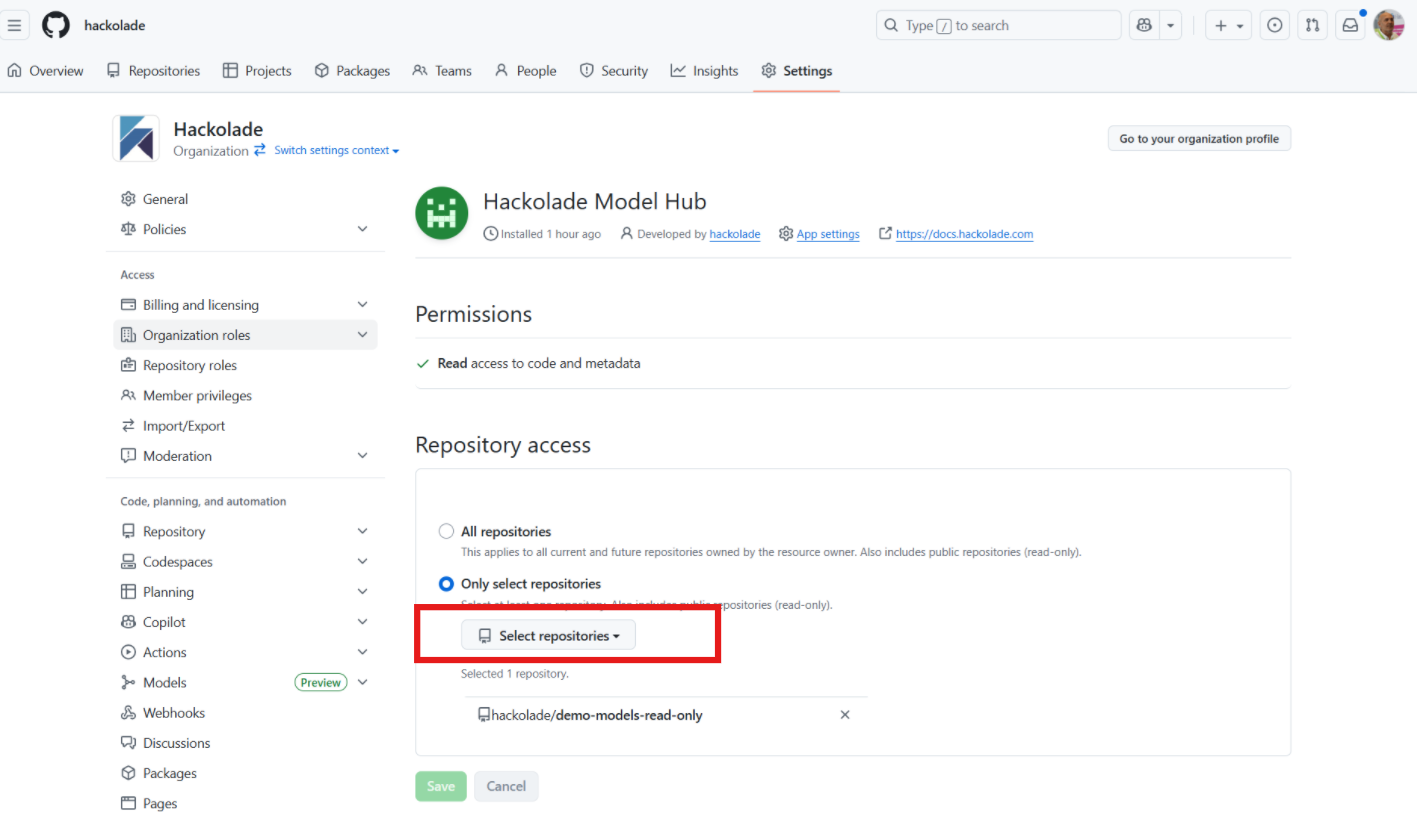
The repository administrator of an organization can create a GitHub app and install it within the organization on GitHub. The app only requires read-only access permission to the content. When installing it, the administrator can select the repository or repositories to which this app is allowed access.
The app also supports webhooks to provide notifications to the Model Hub instance when certain events occur on GitHub. In our case, these events will occur when new models, or new versions of existing models, are pushed to the main branch of each of the linked repositories.
We use a GitHub app manifest to simplify the user experience and pre-fill the app creation form with the appropriate parameters to create the endpoint and secret. Once the GitHub app is created, we store in the OCI Vault: the client ID, the private key, and the webhook secret for the model sync to work. Since this is sensitive information, it must be treated with care, meaning no logging and no way for the user to retrieve it once it is saved.
Initiate the GitHub App creation from the Model Hub
Go to the the Git Providers tab of the admin panel, then click on the button + setup Git Provider, and select GiHub
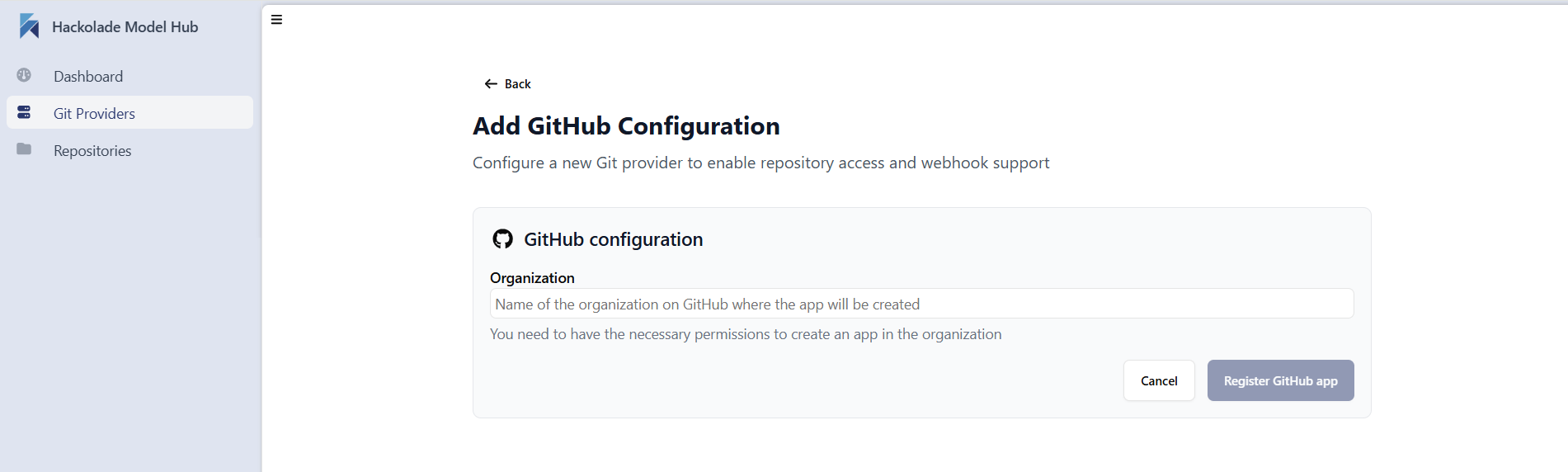
Enter the name of your GitHub organization and click the button Register GitHub app.
Allow and configure the creation of the GitHub App in your organization
Admin role is not required for this step. The user performing this step must have the Apps Manager role at least.
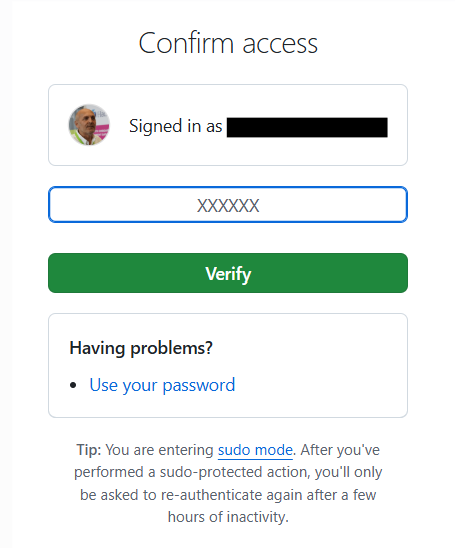
You may need to authenticate with GitHub.
In case configuration is to connect to a GitHub Enterprise Server instance, the hostname of that server should be provided.
Enter the organization name where the GitHub App will be created, then click "Register GitHub App". This will redirect you to GitHub, where you can give this GitHub App a name, for example "Hackolade Model Hub":
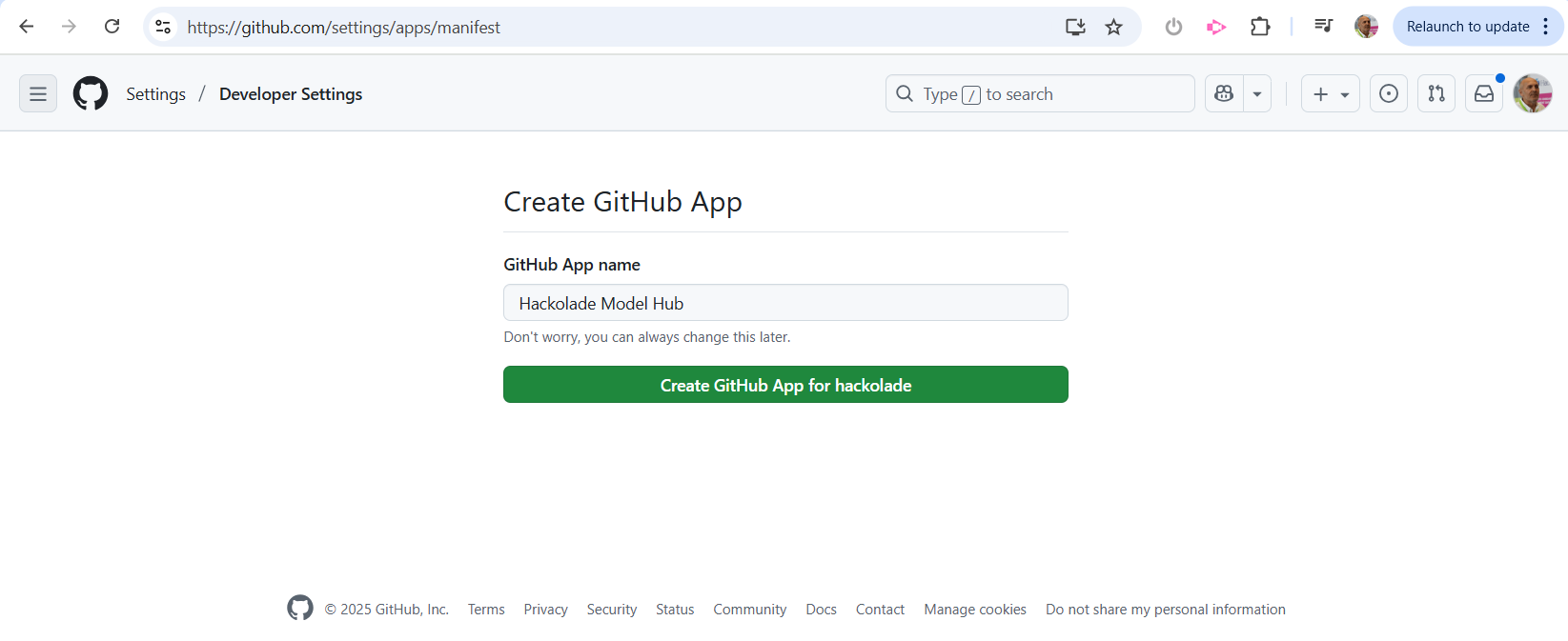
Once the button to create the GitHub App is clicked, the app will be created on the organization's account with the correct configuration. The configuration includes permissions to read any repository installed on the app and to create webhooks.
After the creation is complete, a redirect will return the user to the admin app, where the app configuration will be saved in the OCI vault.
The last step is now to install the GitHub App by clicking on the "Install" button.
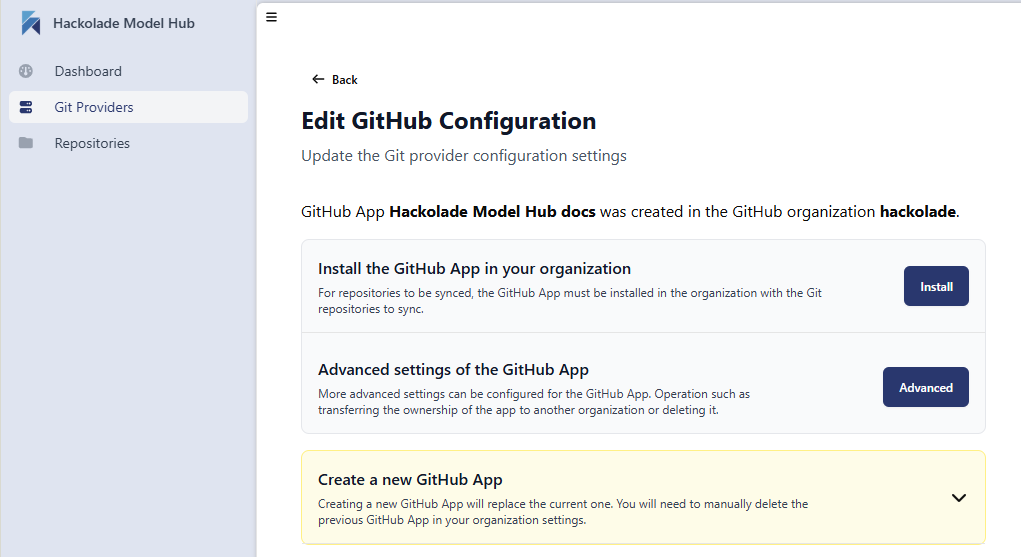
The process may take up to one minute or so. When our automatic process to generate the app is completed, the application returns this screen:
This button will return the user to GitHub, where they can install the application on the organization's account and select the repositories containing the models to be synced with Model Hub. Once this operation is complete, the selected repositories will be imported automatically, and the models will appear on the Model Hub.
Troubleshooting
If after a few minutes, the Model Hub database does not show your models, go to the Repositories tab of the admin panel to view the sync status of your repository of repositories.
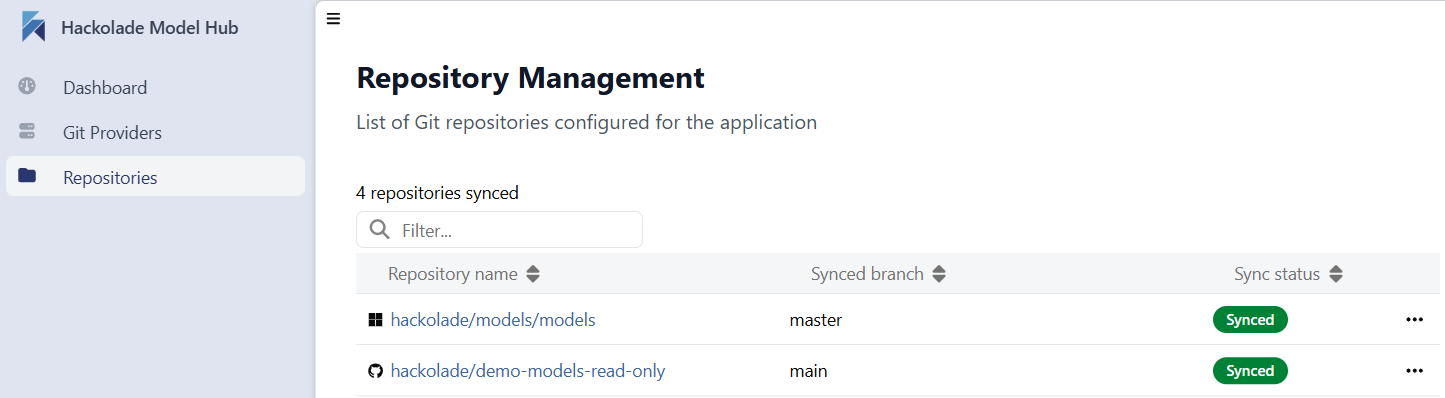
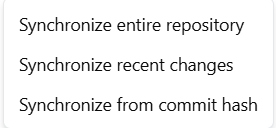
If you think that your Model Hub database is not in sync with a repository, it is possible to manually start one of 3 separate actions
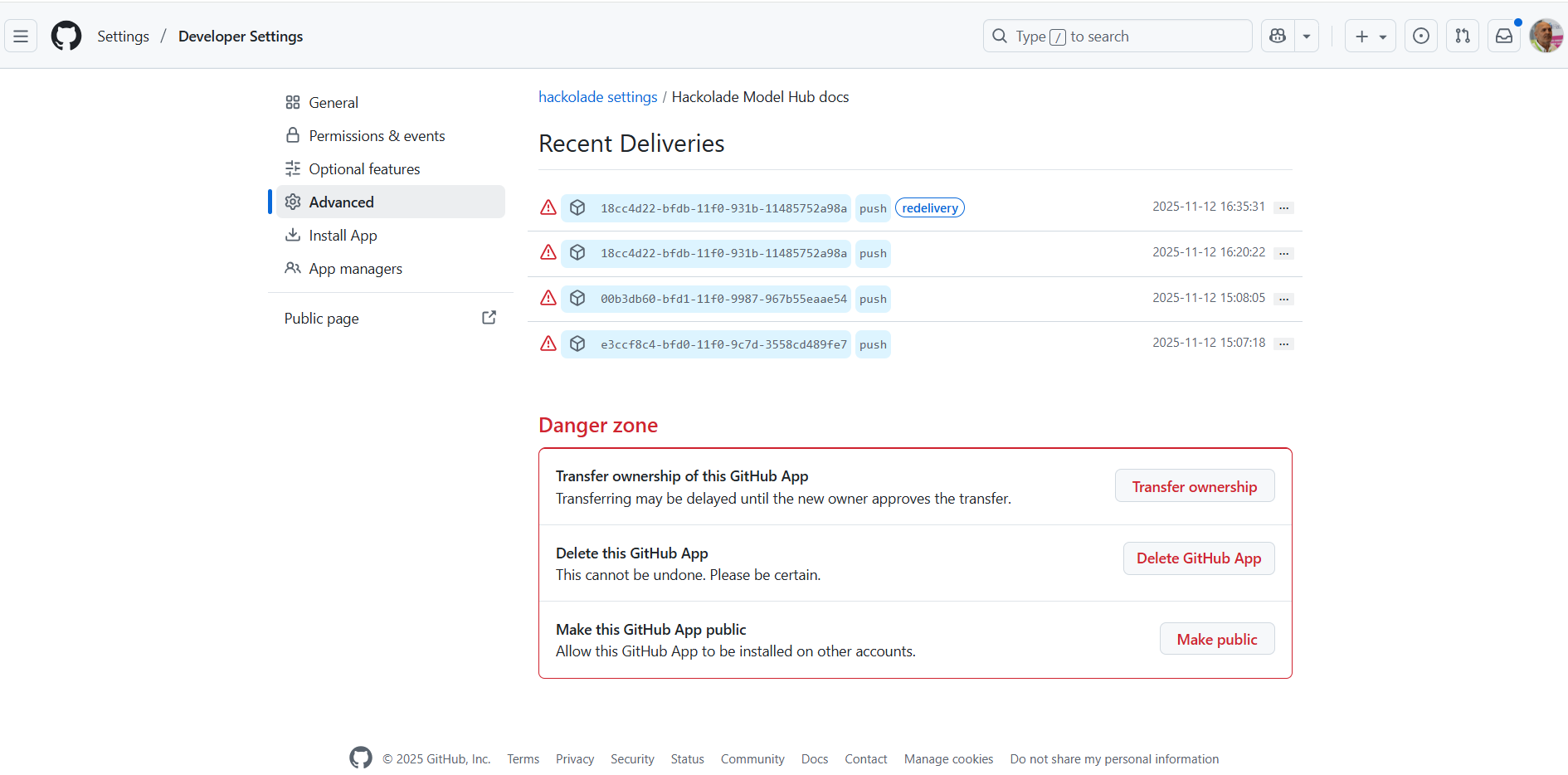
If you have reasons to believe that the database is not receiving models from your GitHub repository, you can view on GitHub whether the webhook is delivering as expected.
There is an easy way to access the GitHub screen. Go to the Repositories tab of the admin panel, then click on the Edit button of the GitHub box:

then click the Advanced button.
You may also manually access the same screen by going to GitHub > your organization > Developer settings > GitHub app > select the app created above > go to Advanced.
Configure an additional repo for replication to the Model Hub
It is possible that you might need to add one or more repositories to the existing list of repos already being replicated to the Model Hub. This action must take place on GitHub.
Go to GitHub > your organization > GitHub apps > for the app created above > click the Configure button. Or from the Model Hub admin panel > Repositories, click on the Edit button of the GitHub repository provider, then click on the Advanced button. In both cases, you reach a page where you can click the button Select repositories to configure your choice.