
Model a supertype group in Polyglot
The previous page positioned supertype and subtype groups, and explained that a group is one axis of specialization. This page covers how you model a simple supertype group in Hackolade Studio: one supertype, a few subtypes, and the properties that come with the group.
Everything here happens in a Polyglot model. What a group produces through derivation appears in pages below.
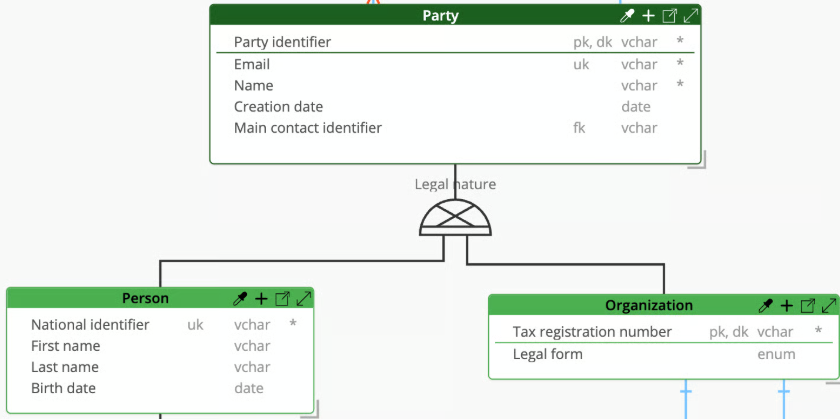
Let's build a deliberately small example: a Party, which is either a Person or an Organization, for example:
Create a supertype group from scratch
There are 3 steps: create the entity that carries the common part (the supertype), create the group itself, then create the subtypes.
Start with the supertype. A supertype is an ordinary entity, created the ordinary way, and it becomes a supertype the moment a supertype group points to it. Create the Party entity as you would create any other entity in Hackolade Studio, and give it the attributes shared by by the different subtypes: a party identifier, a name, an email and a creation date.
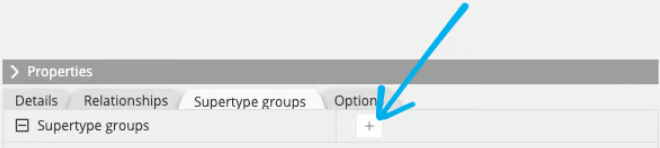
Then create the supertype group. At the model level, a Supertype groups tab shows in the Properties Pane of the model (visible at the highest level in the Object Browser, or by clicking the canvas in the ERD.) Select the Supertype groups tab, which lists every supertype group of your model. Use the + sign to add a new one:
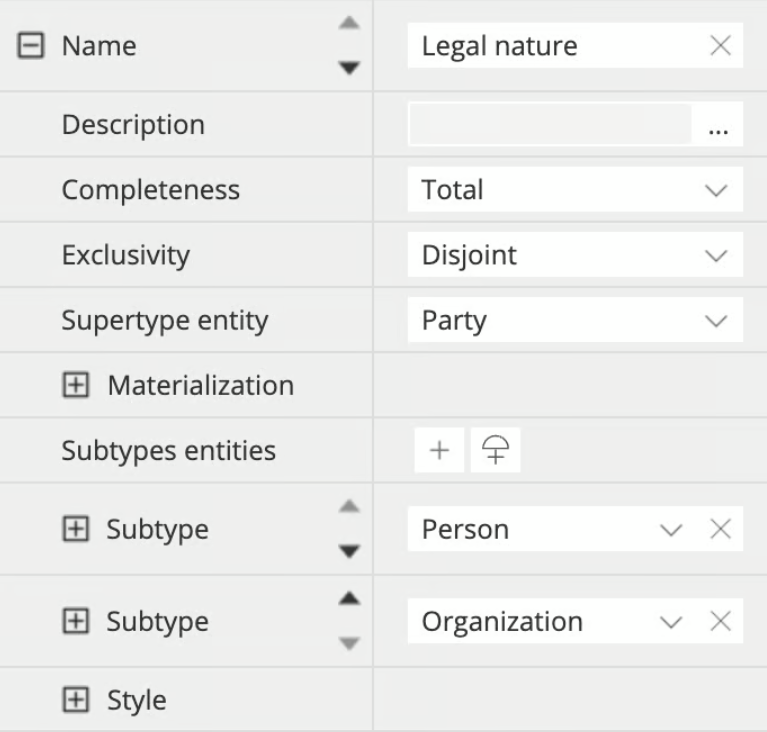
A form appears so you can fill in the details:
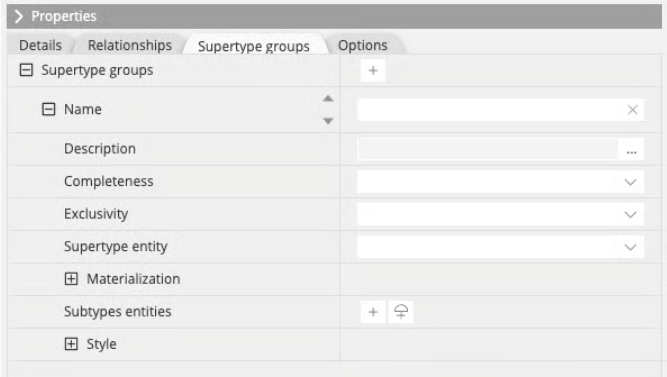
You may fill the form from top to bottom:
-
the name
- In our example, "Legal nature" tells the reader that Person and Organization are two legal forms of the same party, which "Party subtypes" would not.
-
the description, free text, for whatever the name cannot carry
-
Completeness and Exclusivity, the two characteristics described on the previous page: total or partial, disjoint or overlapping. Legal nature is total and disjoint in our example.
-
the supertype entity, picked from the entities already in your model; here, Party
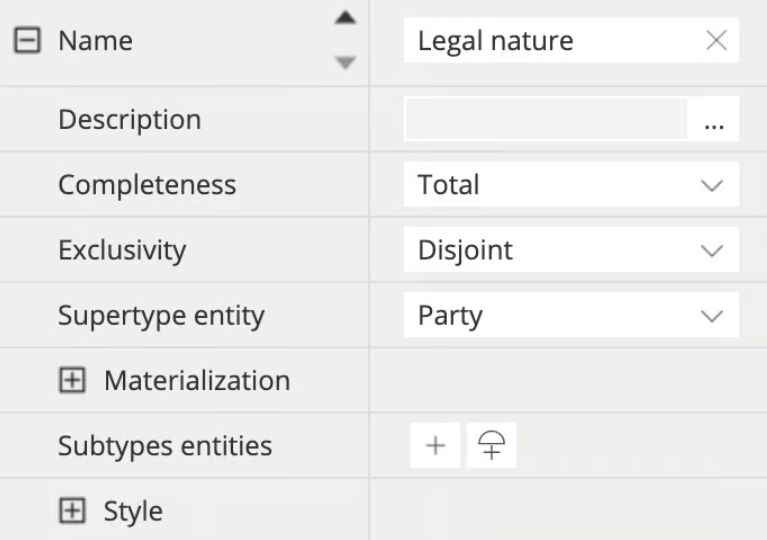
The Materialization section is the remaining one, and you can leave it closed for now; the subsequent derivation pages come back to it in detail.
Important note: no structure shows up yet in the ERD until both 1 supertype and at least 1 subtype are defined for a subtype group.
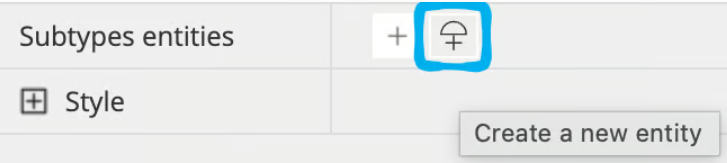
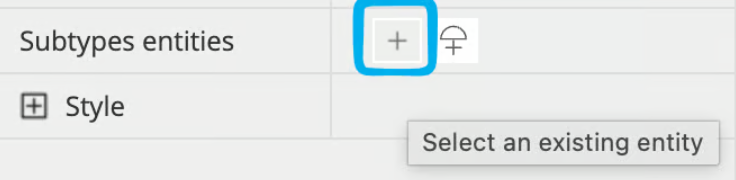
Finish with the subtypes. They can be created as separate entities and linked afterwards, or created directly from the group, which is why the Subtypes entities property carries two icons:
- the supertype group symbol with a + sign below allows to create a new entity and attach it to the subtype group in one click
- or you can click the + sign to select an existing entity in the model from a dropdown list
In our example, Person and Organization do not exist yet, so we create them with the second icon, rename them and add their attributes. The group is now complete:
And on the ERD, the group appears between Party and its two subtypes:
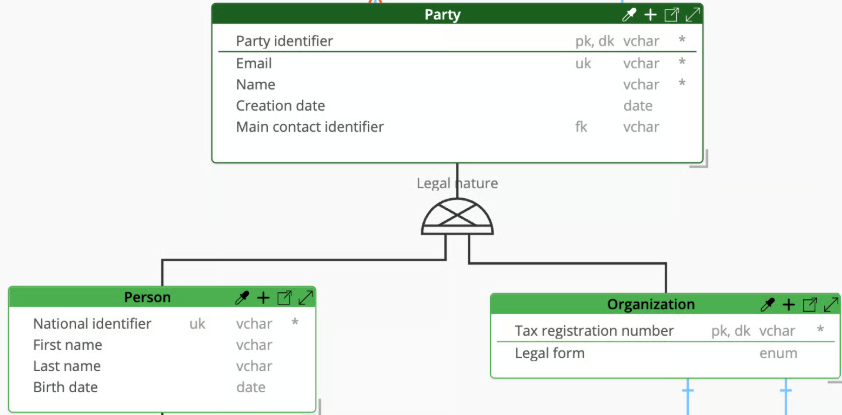
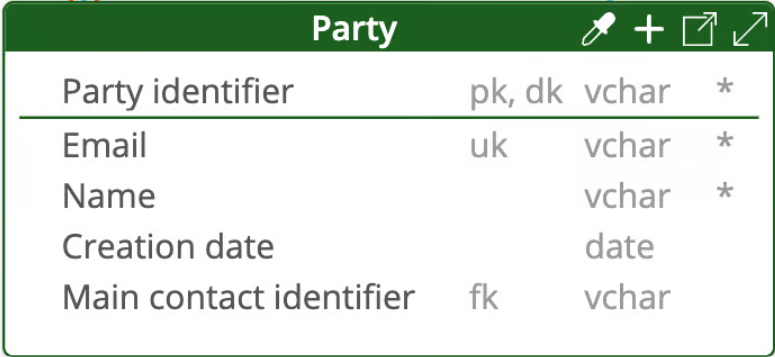
Take a moment to look at what each entity holds. Party carries the attributes shared by every party: the party identifier, the email, the name, the creation date. Person carries only what is specific to a person, and Organization only what is specific to an organization. Nothing is repeated: a subtype inherits the attributes of its supertype, e.g. an Organization has a tax registration number, a legal form, and also the common party identifier, email, name and creation date, even though the ERD only shows the first two in the subtype box.
When a new attribute concerns every party, you add it once in the supertype entity Party, and all the subtype entities inherit it.
Supertype group representation on the ERD
The supertype group name "Legal nature" is displayed above the supertype group symbol, provided that the Display Option to show relationship names is enabled in Tools > Options > Display (or the Display Options icon in the toolbar.)
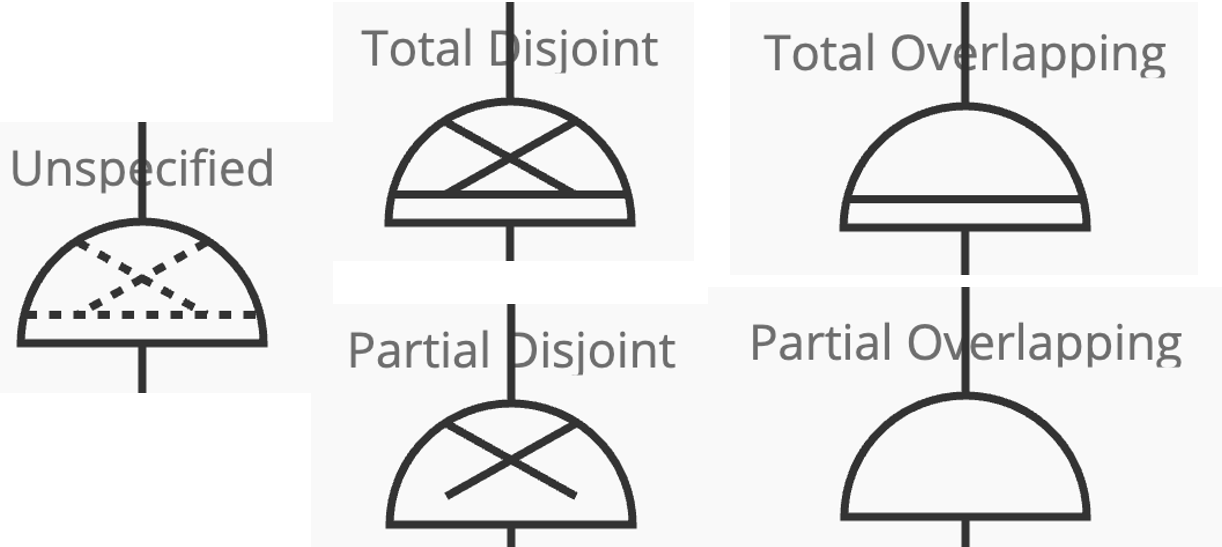
A supertype group is drawn as a half-circle, the standard ERD notation for a generalization. The notation inside of the symbol depends on the selected completeness and exclusivity characteristics:
- a cross inside the half-circle means that the group exclusivity is disjoint; no cross means that it is overlapping
- a bar above the bottom of the half-circle means that the group completeness is total; no bar means that it is partial
- a dashed cross or a dashed bar means the corresponding property is empty in the Properties Pane, and should be specified (Note: this is not a standard ERD convention, but a Hackolade Studio-specific notation...)
The supertype group also appears in its entities' properties pane
The supertype group appears in the Properties Pane at the model level. It also appears in the Properties Pane of each of the concerned entities, whether supertype or subtypes, from their own point of view.
For a supertype, you see its subtypes. Select Party, and its Properties Pane carries a Supertype groups property with one Supertype of line per subtype:
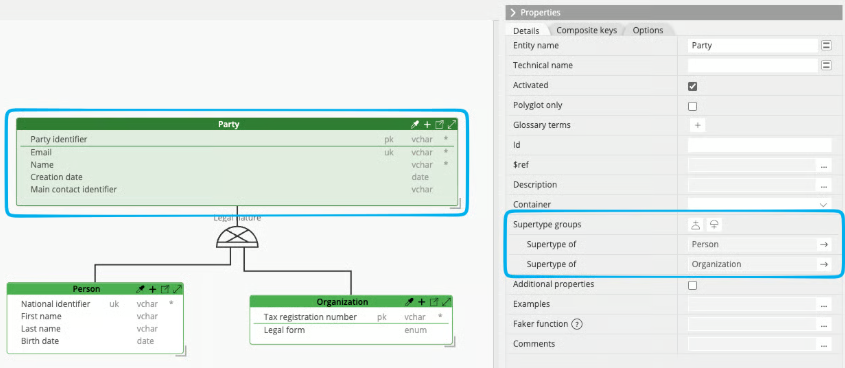
For a subtype, you see its supertype. Select Organization, and the same property reads the other way, with a Subtype of line pointing at Party:
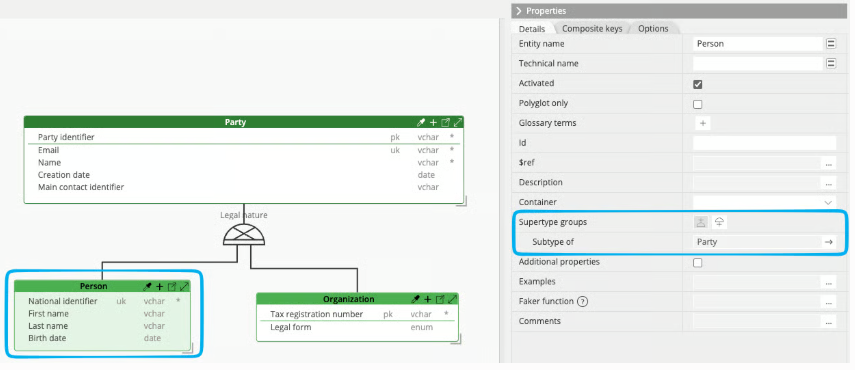
The property specifying the related entities ends with an arrow so you can jump to the details of the supertype group itself, at the model level, exactly where we created it at the beginning of this page. The group properties are managed in one place, and this arrow is the shortcut to it.

Create a group directly from an existing entity
Let's continue the example. So far we created one group: Party, with the Person and Organization subtypes. We now need to detail Person further to introduce a second level below it, because a Person can be an Employee or a Contractor.
This case provides an opportunity to show another way of working. Nothing forces you to create the group separately first as we did above. It is enough if you attach the subtypes to Person. The group gets automatically added when you create a subtype for an existing entity..
Select Person, and use the Add subtype icon on its Supertype groups property:
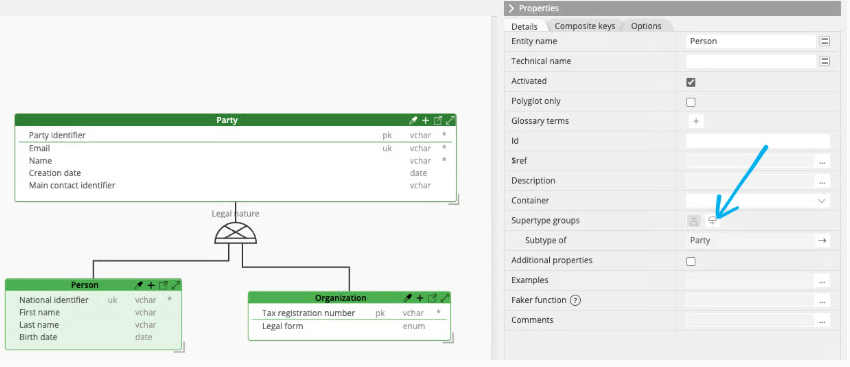
One click does it all. Hackolade Studio creates an entity named New subtype under the Person entity, creates the group that holds the two of them, and puts the focus on the new entity so you can name it right away:
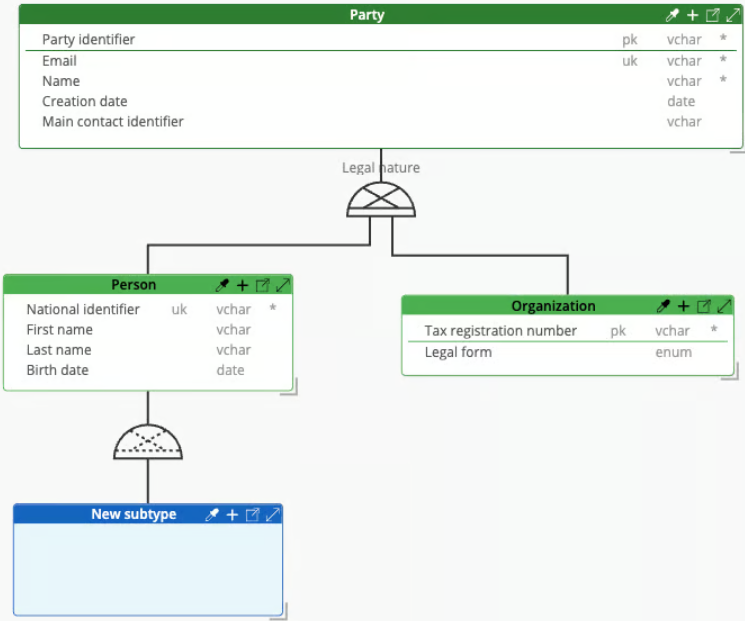
Rename the subtype to Employee, then complete it with the attributes that belong to an employee:
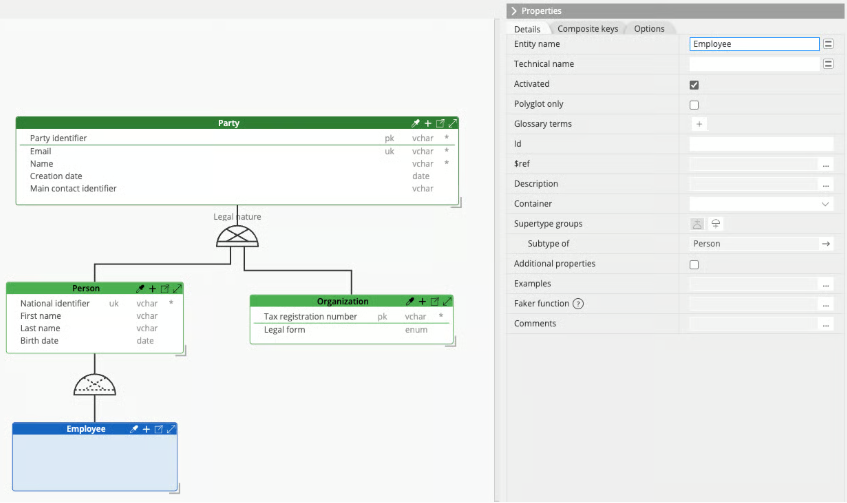
Go back to the Person entity and do the same again for the Contractor subtype. Person now has two subtypes, and the model has two levels. Select Person again. Its Supertype groups property show every group in which it takes part, in both roles at once: Employee supertype, Contractor supertype, and Party subtype.
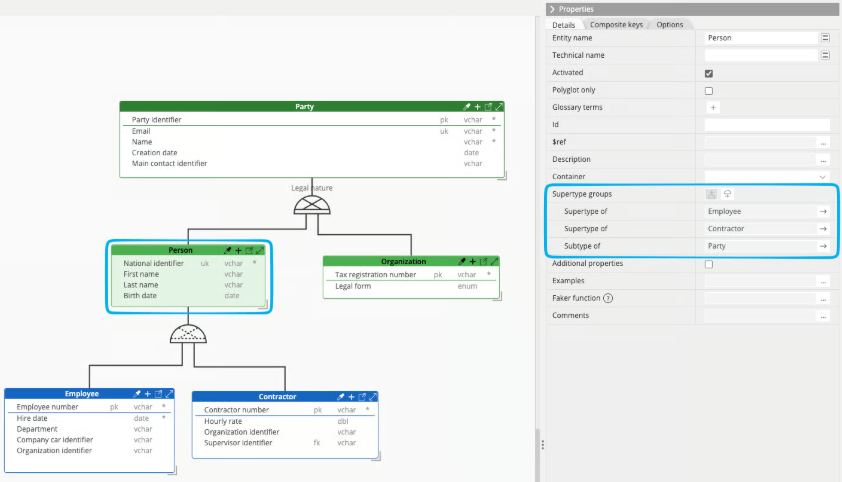
The supertype group was created automatically, along with the link between Person and its new subtypes. The group is missing a name, plus the completeness and exclusivity properties. This is what the dashed parts of its symbol tell you: the two characteristics are still to be filled in. Open the group to give it a name, Person role for example, and declare the completeness and exclusivity. The arrow on the Supertype of line of Party takes you straight there, or click on the group symbol in the ERD. Then from the properties Pane for group, you can attach further subtypes without going back to the entities.
The Person entity is a subtype in one group and a supertype in another, which is how a hierarchy of several levels is built. Inheritance follows the levels: an Employee holds its own attributes, plus those of Person, plus those of Party.
Add subtypes from anywhere in Studio
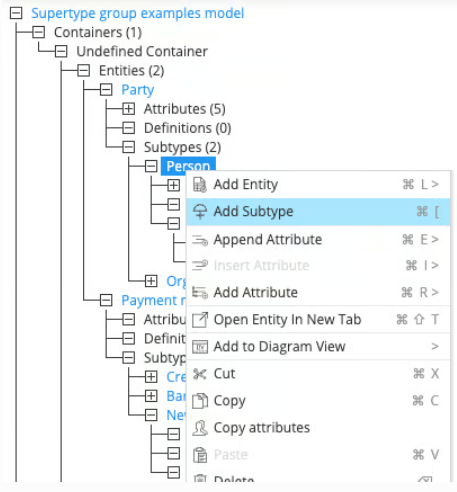
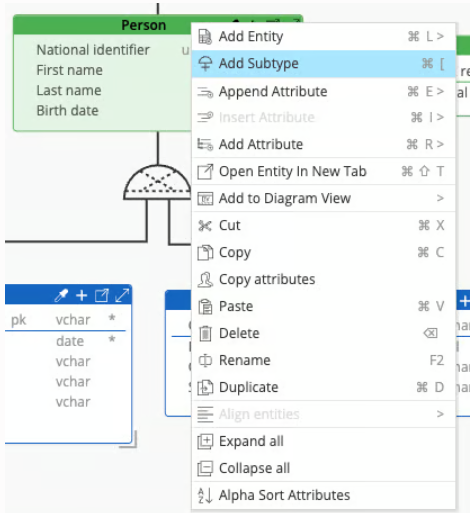
A supertype group can take as many subtypes as your model needs, and the Properties Pane is not the only place to add them. As soon as an entity is selected, you can right-click (on the entity in the ERD or in the Object Browser), then select Add Subtype from the contextual menu:
The same command is available in the Diagram Objects panel, to the left of the ERD:
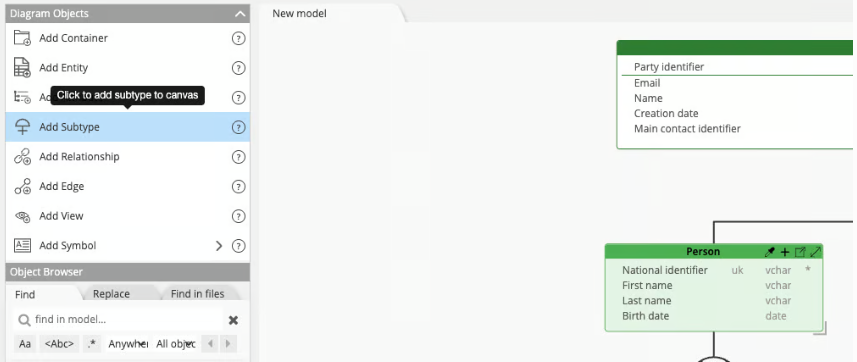
In the toolbar:

And also in the Actions menu, or via the keyboard shortcut Ctrl/Cmd + ):
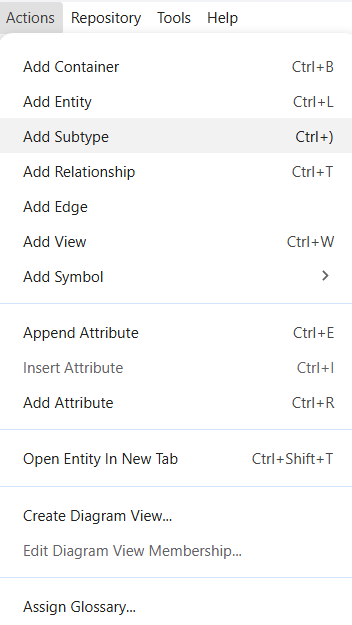
All these methods accomplish the same action, in the ERD as well as in the Object Browser, so use whichever you prefer.
Wherever you trigger it from, the result follows one rule:
- if the entity in focus is already the supertype of a group, the newly created subtype joins that group.
- if it is not a supertype yet, the group is created together with the subtype, as it happened on Person in our example.
Note: if you want to create a different group, to represent different axes, you may do so following the instructions in this page.
Add a supertype above an existing entity
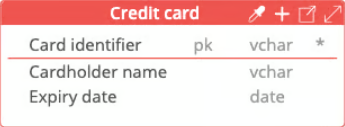
Generalization often comes to you after the fact, once the specific cases are already modeled. Say you have a Credit card entity, with a card identifier, a cardholder name and an expiry date, and you realize that a credit card is one payment method among others; bank transfers share a label, a status and a creation date with it.
The icon of a half circle with a + sign above in the Supertype groups properties is to create a supertype group for the selected entity, and turn the selected entity into a subtype for the group.
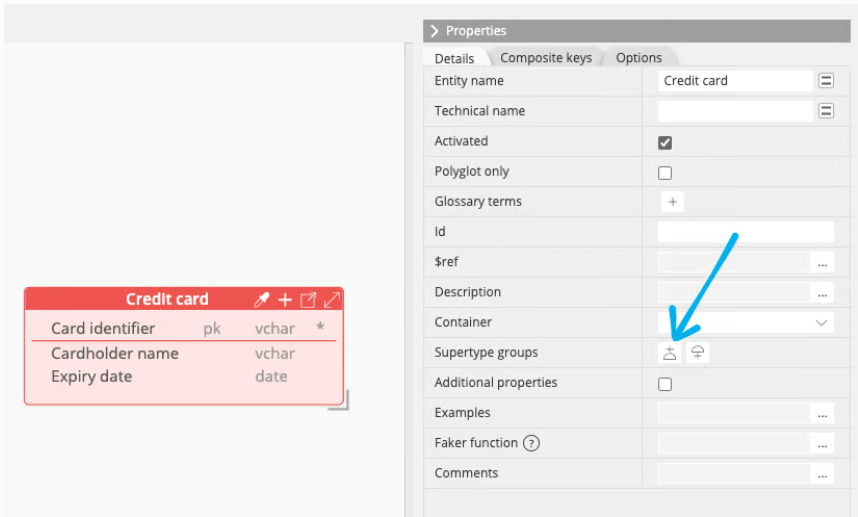
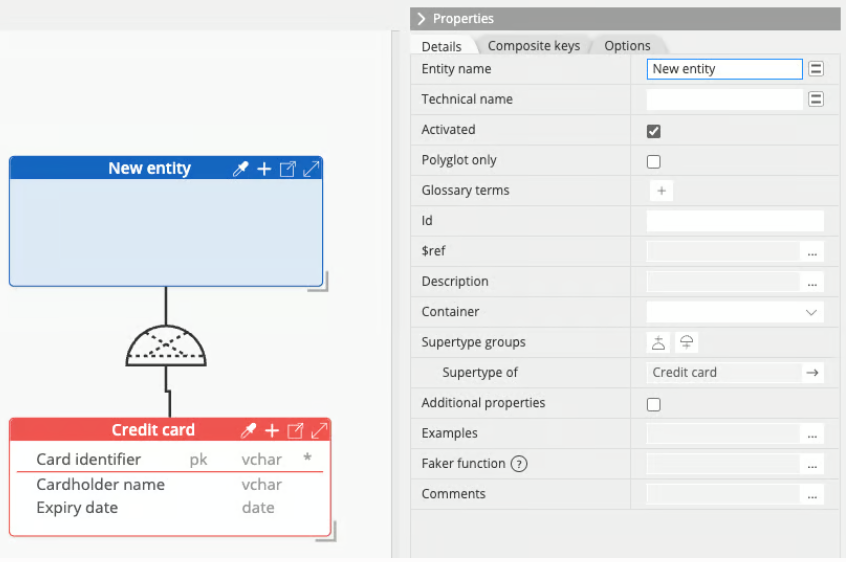
Select Credit card and click the button: a new entity is created above, as the supertype of Credit card, with the group structure.
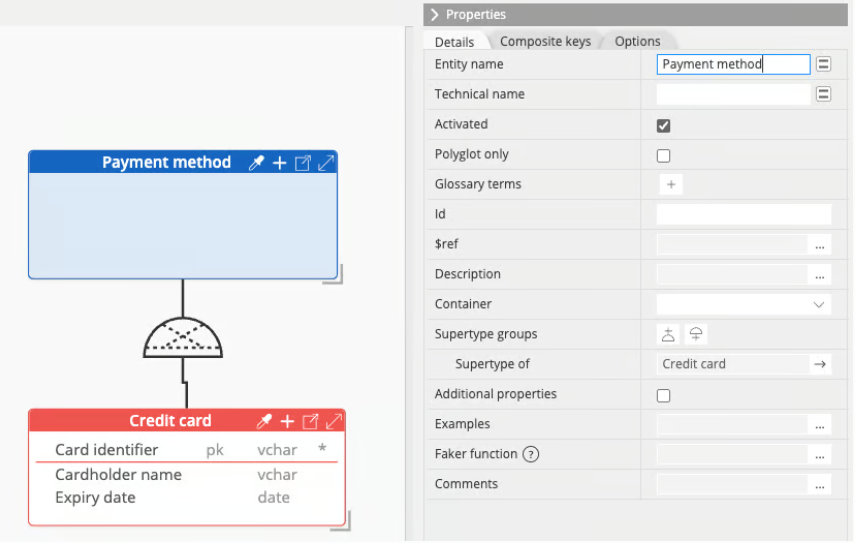
Rename that entity to Payment method, and add the shared attributes.
Bank transfer can then be attached as a second subtype, the way you attached Contractor earlier.
Note: on an entity that already has a supertype, the icon is disabled and greyed out. A supertype group (and hence any subtype entity) can have at most one supertype.
Where supertype groups appear in the Object Browser
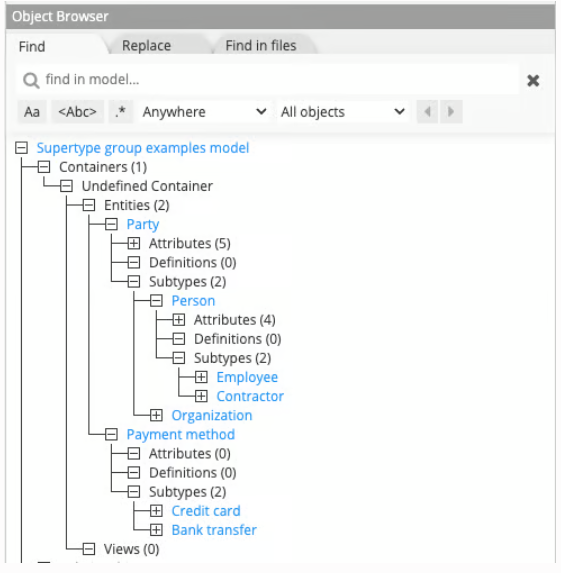
Every entity has a Subtypes node in the Object Browser, with the number of subtypes attached to it:
The contextual menu of any entity node offers the same Add Subtype command, as in ERD.