

AI chat history
The AI chat history is the list of your conversations in the AI chat panel. Hackolade Studio saves each conversation as soon as you send your first message. You can go back to it later, for example the next day, and continue where you stopped. Each conversation belongs to the data model in which you started it.
Show or hide the list of conversations
Click the Show conversations icon at the top left of the panel, next to New chat, and click it again to hide the list. When the panel is narrow, the list opens over the chat:
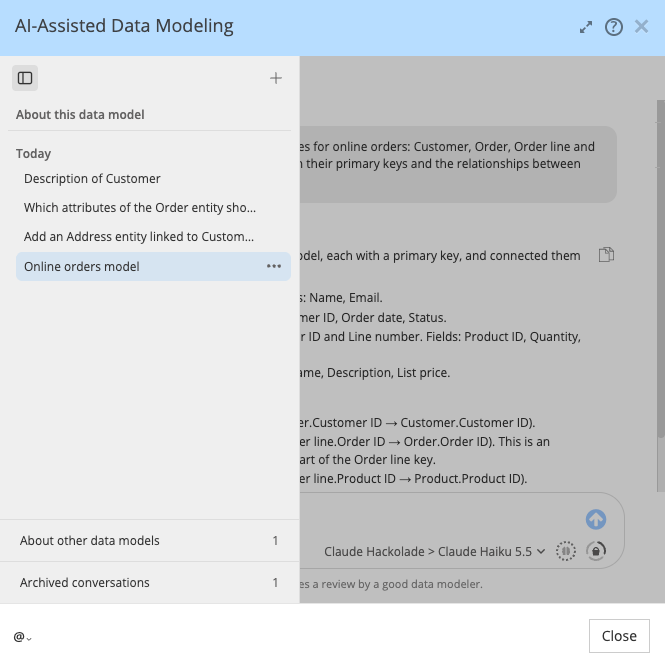
How the list is organized
The sidebar holds three lists:
- About this data model: the conversations of the open data model;
- About other data models: your conversations about other data models, with the name of the data model under each title;
- Archived conversations: the conversations you archived, whatever their data model.
In this example, the Orders data model is open. Its four conversations are listed, and the two other lists hold one conversation each:
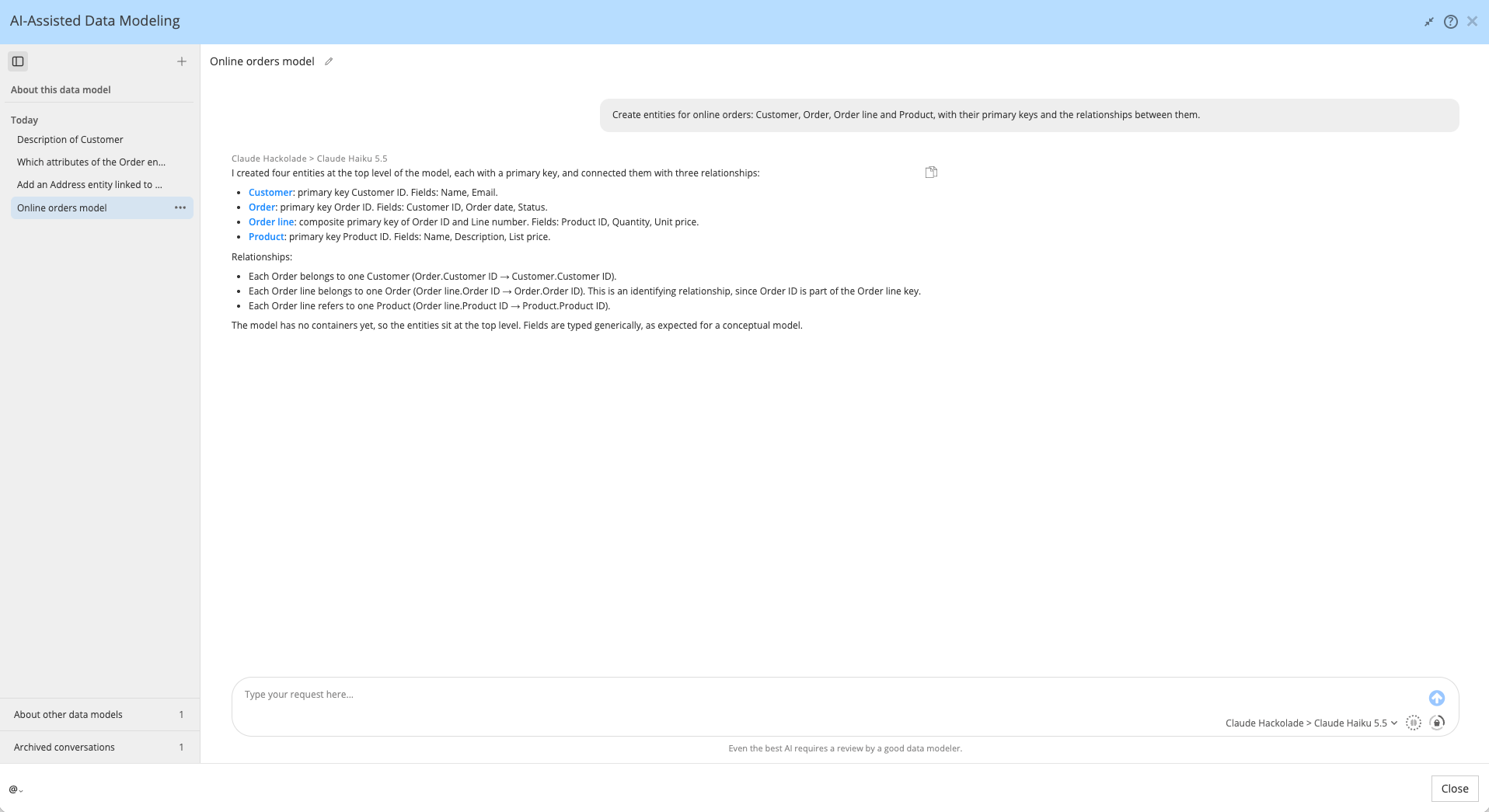
Click About other data models or Archived conversations at the bottom of the sidebar to open that list, and click the arrow at the top of the list to go back.
The most recent conversations come first, grouped by date. Each conversation takes its title from your first message. Each time you run Assist me, a new conversation starts, even on the same object.
Open a conversation
Click a conversation in the list to open it. You can do so while the AI is still answering: the answer goes on in the conversation where you asked the question.
Rename a conversation
Click the pencil next to the title of the conversation at the top of the panel. In the list, click More actions (...) on the line of the conversation, then Rename.
Archive a conversation
To clear the list without losing a conversation, click More actions (...) on its line, then Archive. The conversation moves to Archived conversations, where you can still open and continue it. To bring it back, click Unarchive in the same menu.
Delete a conversation
Click More actions (...) on the line of the conversation, then Delete, and confirm. You cannot get a deleted conversation back. Hackolade Studio also overwrites the conversation in the file on your computer, so that it cannot be read afterwards.
Search your conversations
Type a few words in the Search conversations field at the top of the list. Hackolade Studio searches the titles and the messages of all your conversations, whatever their data model, archived ones included. Case and accents do not matter, and when you type several words, a conversation must contain all of them.
Click a result to open the conversation at the matching message. Press Escape to go back to the list.
Continue a conversation from another data model
A conversation is tied to the data model in which you started it.
Important
Your questions and the answers of the AI assistant refer to the objects of the original data model. If you continue it with another data model, the AI assistant may change objects that do not match what you discussed.
Some conversations are more general, though: a discussion about naming conventions or about a modeling approach can be useful for several data models. That is why Hackolade Studio lets you continue a conversation with another data model, but only when you ask for it explicitly.
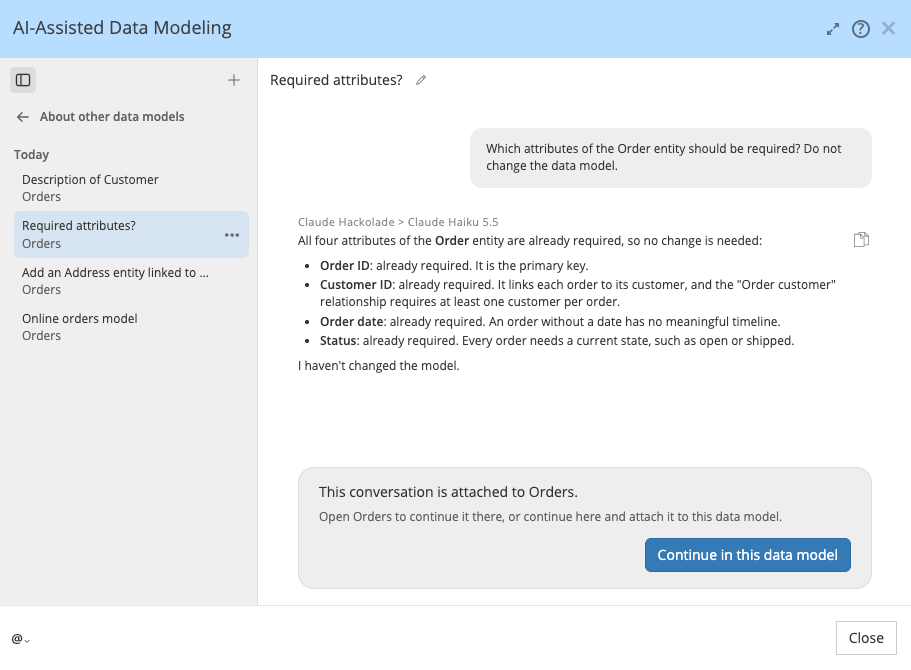
When you open a conversation from About other data models, you can read it, but instead of the text box, the panel tells you which data model the conversation is attached to. You then have two choices:
- to continue the conversation with its own data model, open that data model in Hackolade Studio;
- to continue it with the open data model, click Continue in this data model.
Note
Opening the data model of the conversation directly from the panel is coming soon.
Here, a conversation started in the Orders data model is opened while the Inventory data model is open:
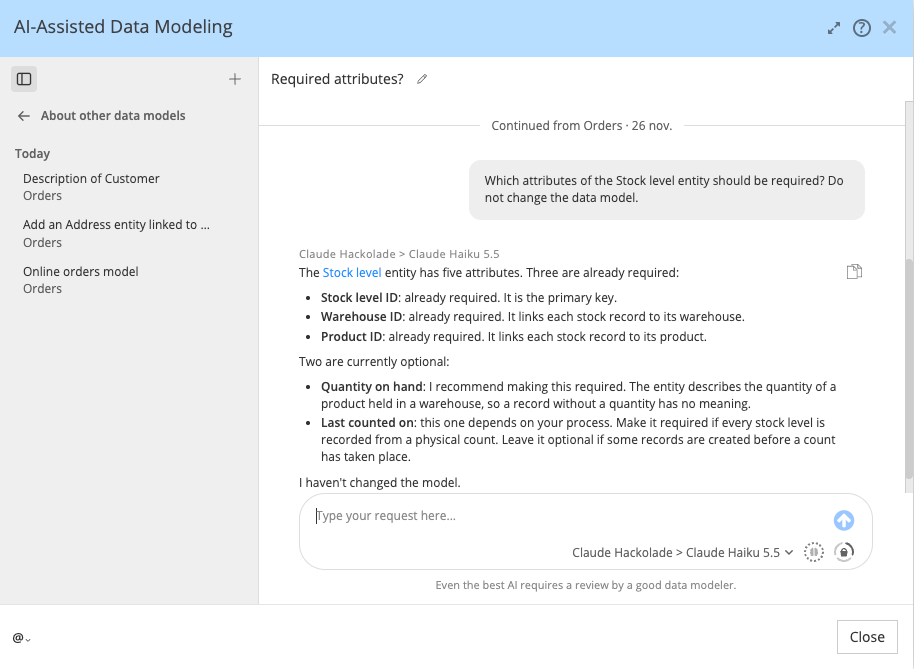
With Continue in this data model, the conversation moves to About this data model. A line such as Continued from Orders · Nov 26 shows where you changed data model. In this example, the conversation goes on in the Inventory data model with a question about the Stock level entity:
Where your conversations are stored
Your conversations are personal. Hackolade Studio keeps them on your computer, encrypted, and never in the data model. If you work with a shared Git repository in Workgroup Edition, your conversations are not pushed with your data models, and the people with whom you share a data model do not see them. Hackolade does not receive them either, unless you deliberately share a saved chat with our helpdesk.
All your conversations are kept in one place in your user profile, whatever their data model. When you open several instances of Hackolade Studio at the same time, they all show the same conversations.
How your conversations are protected
Hackolade Studio encrypts everything it saves about your conversations: the titles, your messages, the answers of the AI assistant, the parts of your data model that they contain, and the index used to search them.
The encryption key is created on your computer the first time you use the AI chat panel. It is protected by the secure storage of your operating system: the Keychain on macOS, the Windows Data Protection API (DPAPI) on Windows, and the keyring on Linux. Your conversations can therefore be read only on this computer, and only when you are signed in with your own account. Other users of the same computer cannot read them, and neither can someone who copies the files to another computer or gets them from a backup of your disk.
Hackolade does not have the key, so nobody can recover your conversations if the key is lost.
The API keys of your AI connections are never saved with your conversations. A conversation keeps only the name of the connection that it used.
Note
The encryption protects the files saved on your computer. It does not protect your conversations against malicious software that runs under your own account.
Back up or move your conversations
The backup of your options and connection settings, in Tools > Options > General, does not currently include your conversations. You cannot move your conversations to another computer by copying their files either, because only your account on the computer where they were created can unlock them. On a new computer, the list of conversations starts empty.
When your organization turns the chat history off
An administrator can prevent Hackolade Studio from saving AI conversations on the computers of your organization, with the deployment policy. The list of conversations is then hidden, and each conversation lasts until you close Hackolade Studio. You can still start a new conversation with New chat (+). The conversations saved before the chat history was turned off remain on your computer, but you can no longer open them.
When the chat history is not available
When Hackolade Studio cannot unlock the key of your conversations, it turns the chat history off, because it never saves a conversation without encryption. The list of conversations is then empty and new conversations are not saved, but you can still use the AI chat panel. This situation occurs in the following cases:
- when what Hackolade Studio needs to unlock the key was deleted, for example the application data folder of Hackolade Studio on Windows, or its entry in the Keychain on macOS;
- on Linux, when no keyring, such as GNOME Keyring or KWallet, is available.
Your previous conversations then cannot be recovered. To start again with an empty chat history, close Hackolade Studio, then delete the .hackolade/ai folder in your user folder, for example C:\Users\%username%\.hackolade\ai on Windows.