
Machine-to-machine OAuth
This page is relevant for machine-to-machine OAuth to a Collibra instance using a service account. It does not apply for Hackolade Studio client connection to a Collibra instance using an identified user via OAuth.
Use this Machine-to-machine OAuth for Collibra Data Dictionary to create and test a connection in Hackolade Studio, then run publishing to Collibra via the Command Line Interface, possibly on a dedicated server, and possibly in Docker. Connecting from the Studio application is not supported for this auth type.
Connect the CLI to Collibra with client credentials
1. Prerequisite in Collibra: register a new application
1. In Collibra, go to OAuth settings and register a new application Collibra OAuth documentation
2. Choose application type Integration (not Platform)
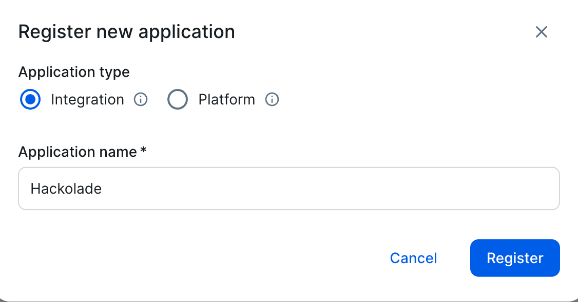
3. Retain the Client ID and Client Secret, they will be needed in next step in Studio.
2. Create a Collibra connection in Studio UI
-
Access the Data Dictionary Connections in Hackolade Studio Desktop.
- Create a new model (pick the target you need, e.g. MongoDB).
- Open Main Menu > Tools > Forward-Engineer > Governance Platforms > Collibra…
-
Click Add
-
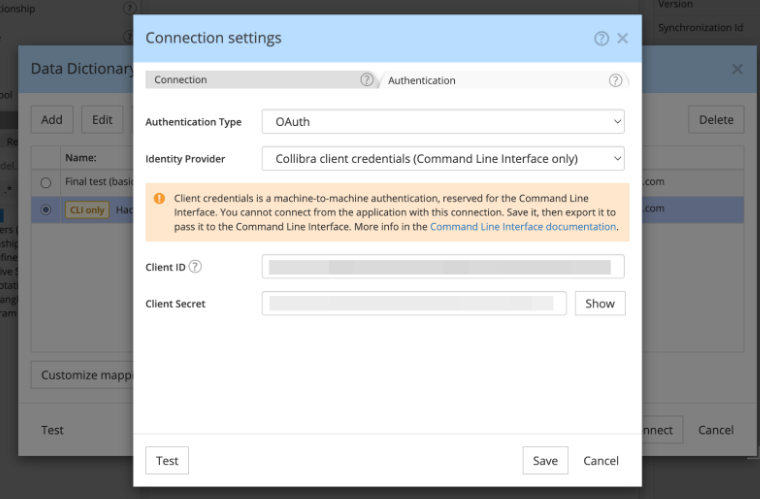
Fill in in Connection tab:
- Name: e.g. My Collibra client credentials connection
- Path: your Collibra base URL (e.g. https://your-instance.collibra.com)
-
Fill in in Authentication tab:
- Authentication: OAuth
- Identity provider: Collibra client credentials (Command Line Interface only)
- Client ID and Client Secret: obtained at step 1 from Collibra OAuth settings
-
Click Test connection: should succeed.
-
Click Save.
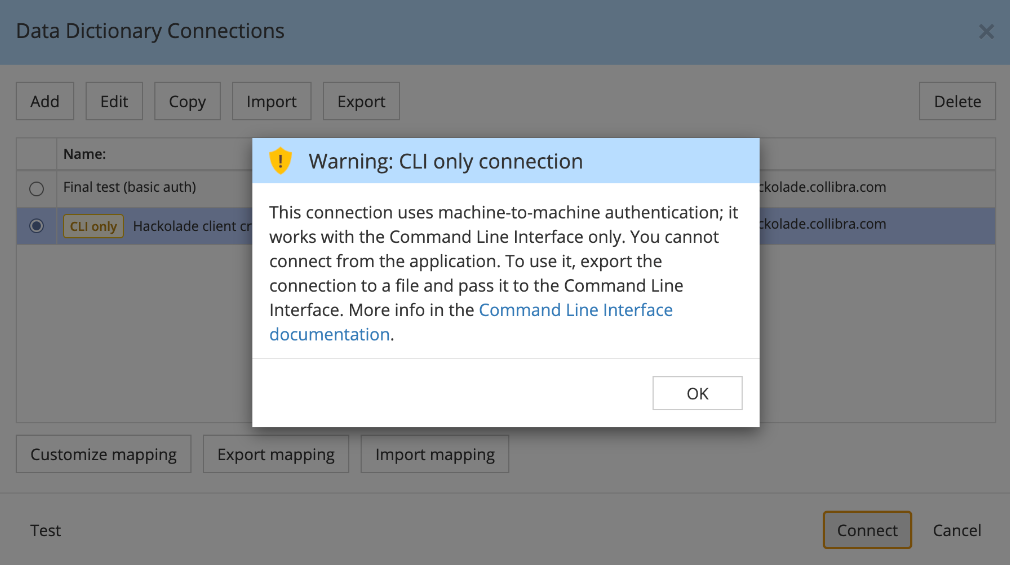
A yellow warning explains this connection is CLI only.
3. Use the connection in CLI
Option A: saved connection name
Export is optional if the connection is saved in the same Hackolade profile the CLI uses.
Option B: export file
1. In Studio ID, select the connection in the list.
2. Click Export and save the JSON/BIN file.
3. Then run CLI from a terminal (see Command Line Interface documentation.)
Publishing example:
hackolade forwengdatadictionary \
--connectname="My Collibra client credentials connection" \
--model="/path/to/model.json" \
--targetresource=your_collibra_domain_name
Reverse-engineer example:
hackolade revengdatadictionary \
--target=MONGODB \
--connectname="My Collibra client credentials connection" \
--datadictionaryresource=your_collibra_domain_name \
--model="/absolute/path/to/output-model.json"
Use --connectfile instead of --connectname when using an exported JSON file.
Additional notes
While the GUI can be used to create a CLI connection in Hackolade Studio to be reused by the CLI, it is not possible to use a machine-to-machine OAuth mechanism from the GUI.
CLI-only connections show a “CLI only” badge in the list.
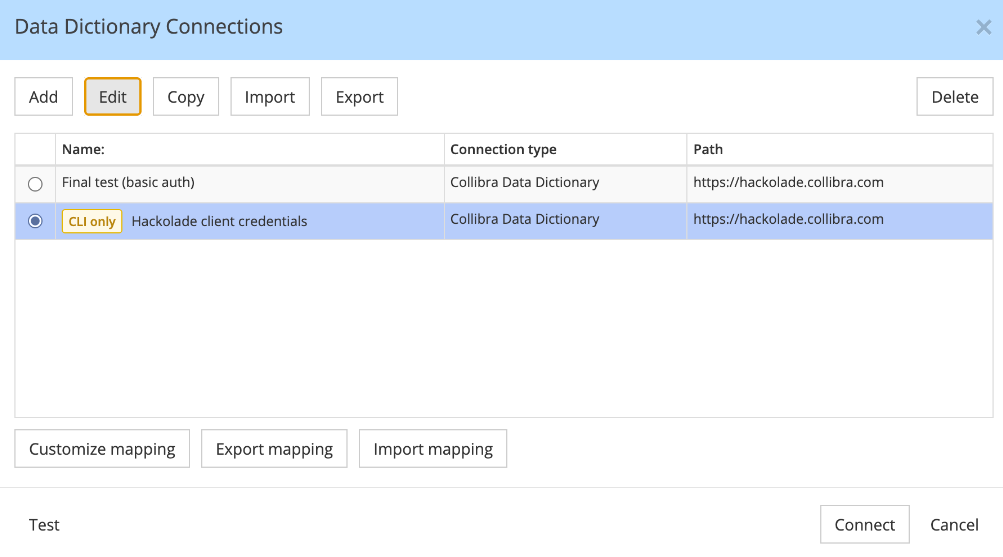
Connect or double-click shows a warning and stops.